

This is how you connect your iOS / iPadOS device with eduroam:
If eduroam is already set up on your device, please remove it first.
Instructions can be found here.
Start Safari and open the following link:
https://helpdesk.its.uni-bayreuth.de/eduios (or use the qr code)
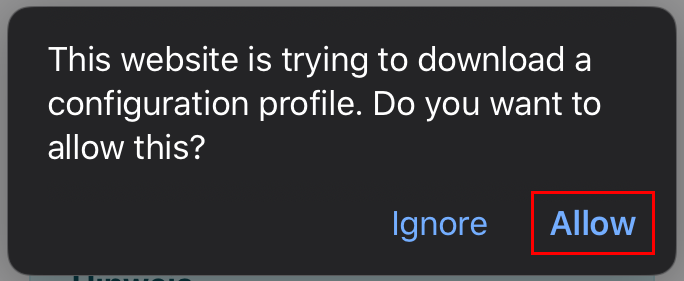
Tap on Allow.
If your device has no internet connection you can use the openly available @BayernWLAN-WiFi on campus.
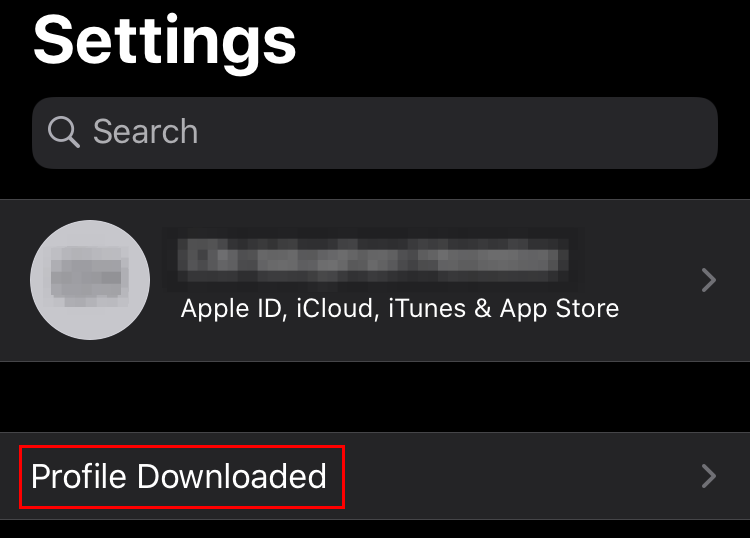
Open the Settings of your iOS device. In the main menu Profile Downloaded should appear up top.
Tap on it.
If Profile Downloaded does not appear, you can also find it under Settings -> VPN & Device Management -> eduroam (under "Downloaded Profile").
On older versions of iOS the installation starts right away - if so, you can skip this step.
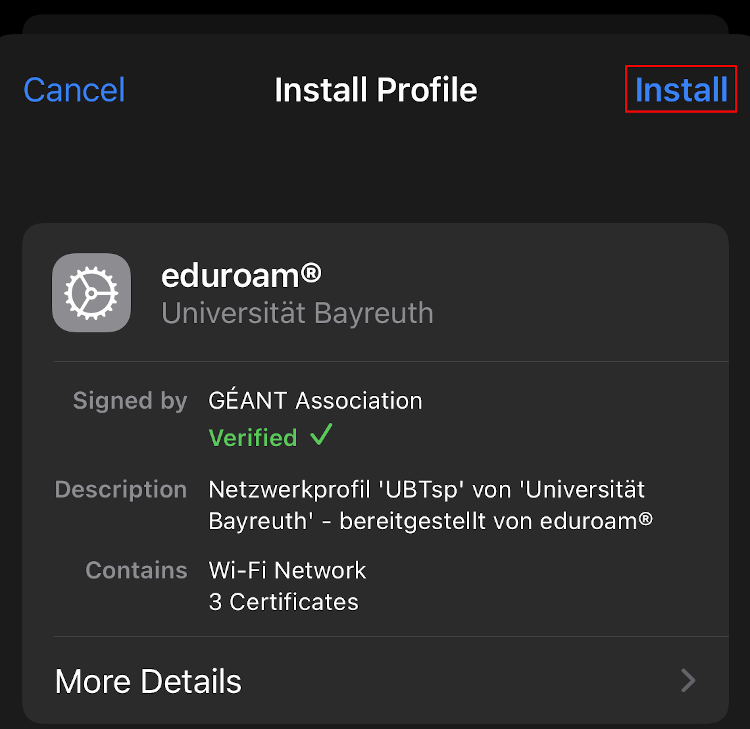
Tap on Install.
You might have to enter the code of your iOS device.
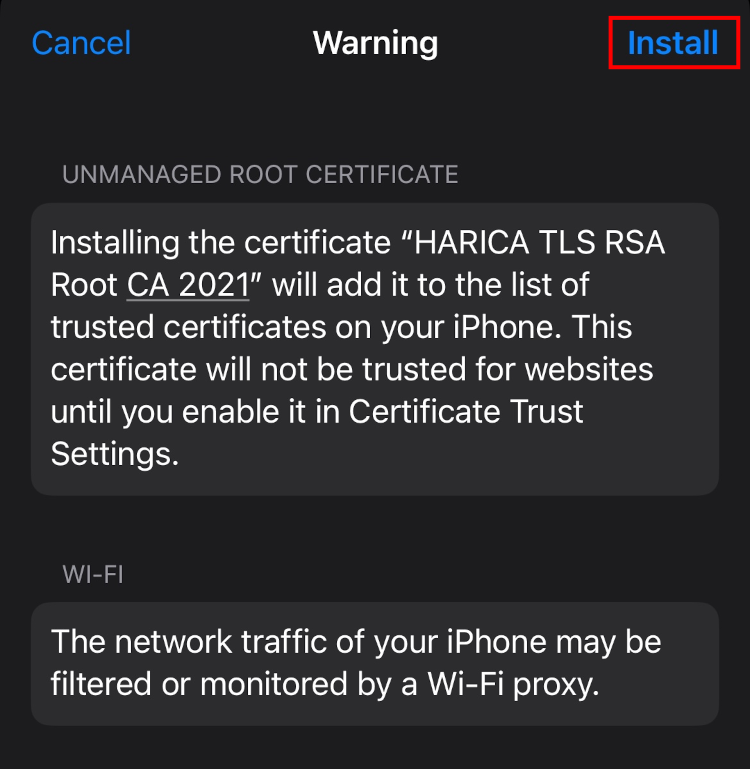
You might have to tap Install again.
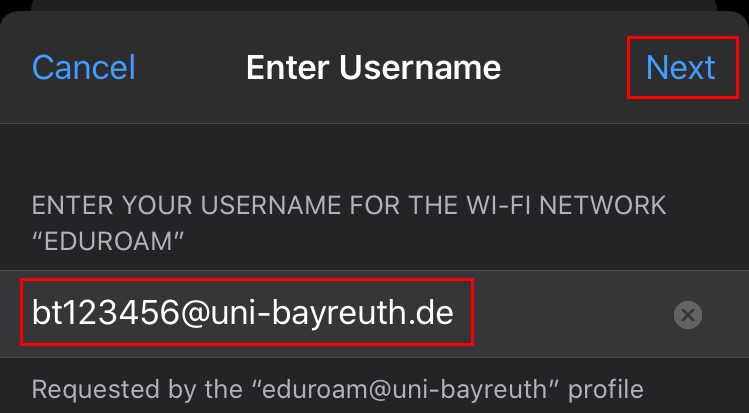
Enter your Uni username + @uni-bayreuth.de as username (e.g. bt123456@uni-bayreuth.de).
On some iOS versions you won't be prompted for username and password during the profile installation. If so, you have to go to Settings -> Wi-Fi, tap on eduroam and enter your credentials there.
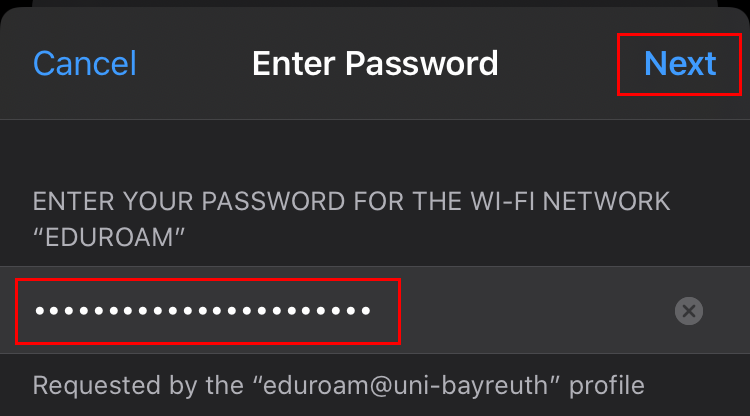
Enter your Uni password.
That's it! If you used the @BayernWLAN WiFi you should remove it from your device so it won't automatically connect unintentionally.