

Attention!
Some older Android versions are missing the required server certificate. If your user credentials and settings are all correct and you still can't connect to eduroam, please use the geteduroam App or import the certificate before connecting.
Some older Android versions are missing the required server certificate. If your user credentials and settings are all correct and you still can't connect to eduroam, please use the geteduroam App or import the certificate before connecting.
This is how you connect your Android device with eduroam:
1
If eduroam is already set up on your device, please remove it first.
Instructions can be found here.
2
Connect to the eduroam-WiFi network.
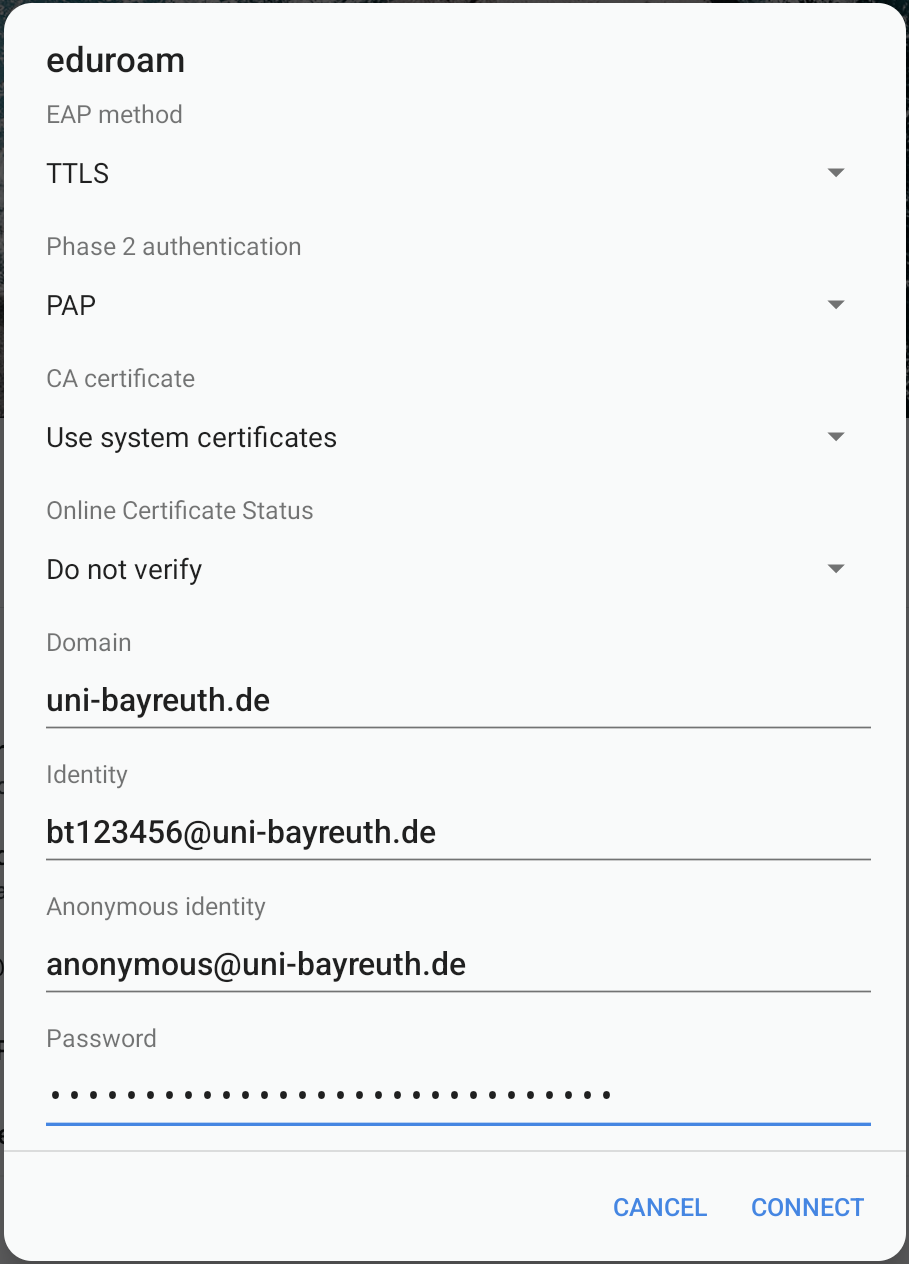
Use the following settings:
- EAP method: TTLS
- Phase 2 authentication: PAP
- CA certificate: Use system certificates (In case this option does not exist on your device, please use these instructions instead (click here)!)
- Domain: uni-bayreuth.de
- Identity: Your Uni username + @uni-bayreuth.de (z.B. bt123456@uni-bayreuth.de)
- Anonymous identity: anonymous@uni-bayreuth.de
- Password: Your Uni password
If there are options missing, you might have to tap on Advanced Options (or similar).
Notice
Make sure that the Android autocorrect function does not add spaces after the entries!
Make sure that the Android autocorrect function does not add spaces after the entries!
3
That's it! If you used the @BayernWLAN WiFi you should remove it from your device so it won't automatically connect unintentionally.
Problems with these instructions? Let us help you! Contact us fast and easy through our contact form!