

This is how you remove eduroam from your macOS 11 (Big Sur) or 12 (Monterey) device:
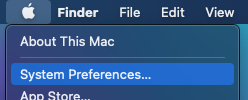
Click on the Apple icon up left and then System Preferences...
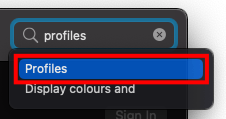
Enter Profiles in to the search field (up right) of the System Preferences window.
Below the field, there should be an entry called Profiles. Click it.
In case there is no Profiles option, jump to step 5.
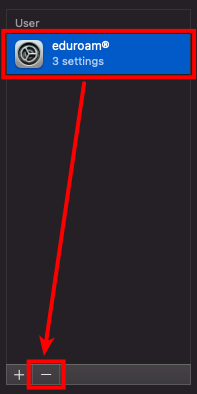
In the list of installed Profiles, select the eduroam profile and click the Minus (-) symbol.
In case there are multiple eduroam profiles present, please remove them all.
If you cannot find any eduroam profiles, jump to step 5.
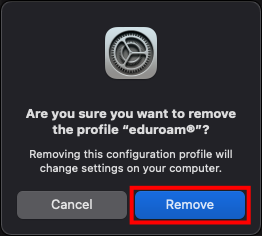
Confirm by clicking Remove. You might have to enter the password of your Mac (not of your university user account).
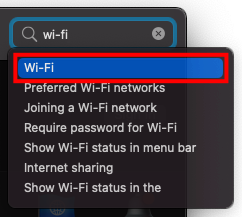
Now, go back to the System Preferences window and enter Wi-Fi into the search field and click the Wi-Fi entry that appears below.
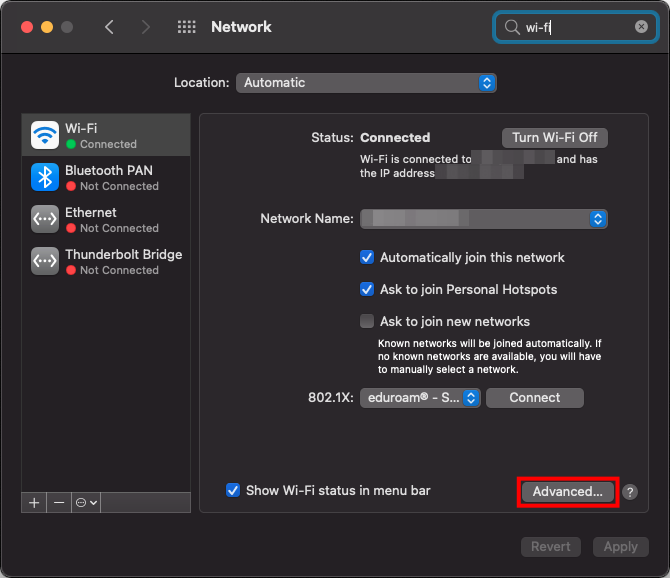
Click Advanced... at the bottom right.
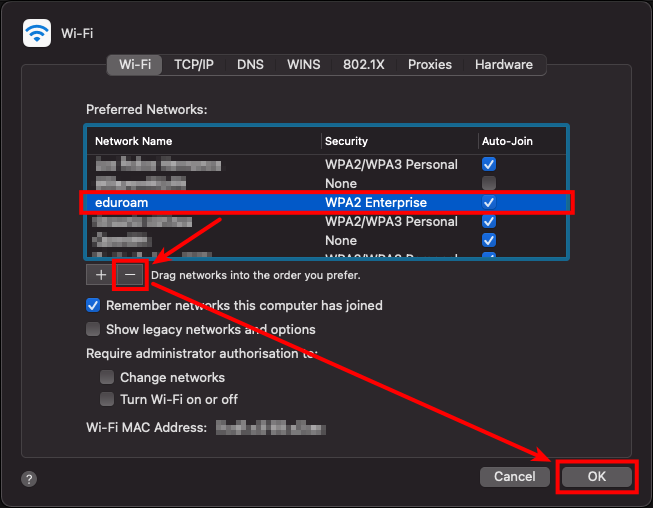
Under Preferred Networks:, search for eduroam entries. Remove them by selecting them and clicking the Minus (-) symbol and afterwards OK.
Note: This list is usually not sorted alphabetically, but by network priority.
If you cannot find any eduroam networks, skip this step.
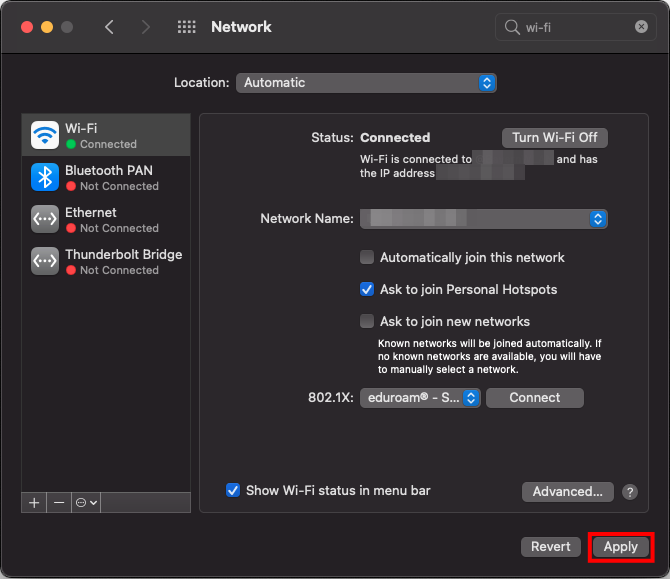
When you're done, click Apply.
This step is very important since the networks are not deleted if you don't click Apply!
That's it! You have successfully removed the eduroam network from your device.
If you want to connect to it again, please follow our instructions for setup (click here)!