

This tutorial assumes that you are in a place where the eduroam Wi-Fi network is in reach.
This is how you remove eduroam from your iOS / iPadOS device:
In order to remove eduroam from your device, open the Settings App and choose General.
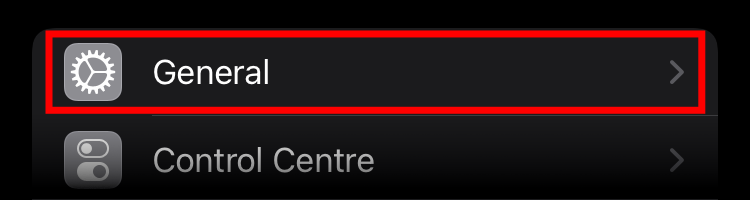
Now tap on VPN & Device Management.
In older (no longer supported) versions of iOS, this menu entry might be called Profiles or Profiles & Device Management.

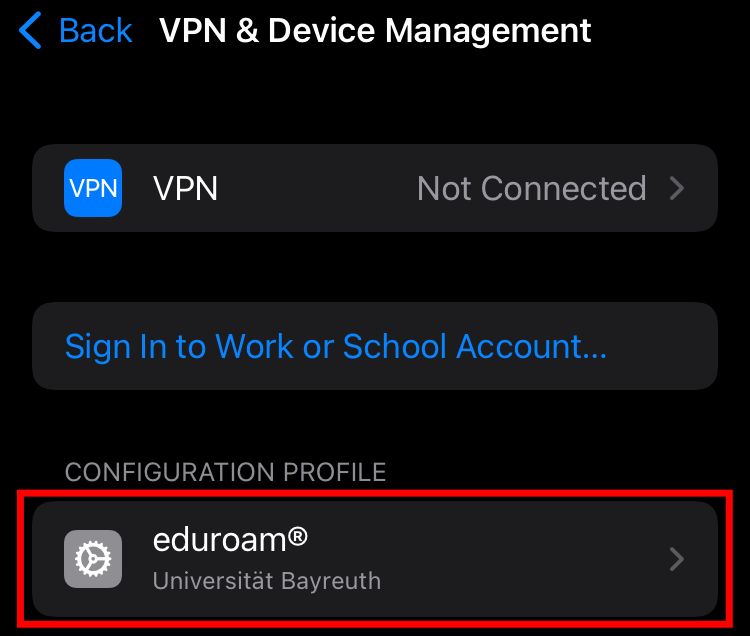
In the list of Configuration Profiles, tap on the eduroam profile.
If there are multiple eduroam profiles in this list, please delete them all.
In case there are no eduroam profiles to be found, jump to step 6.
Older iOS versions might not have a Profiles menu entry if there are none installed.
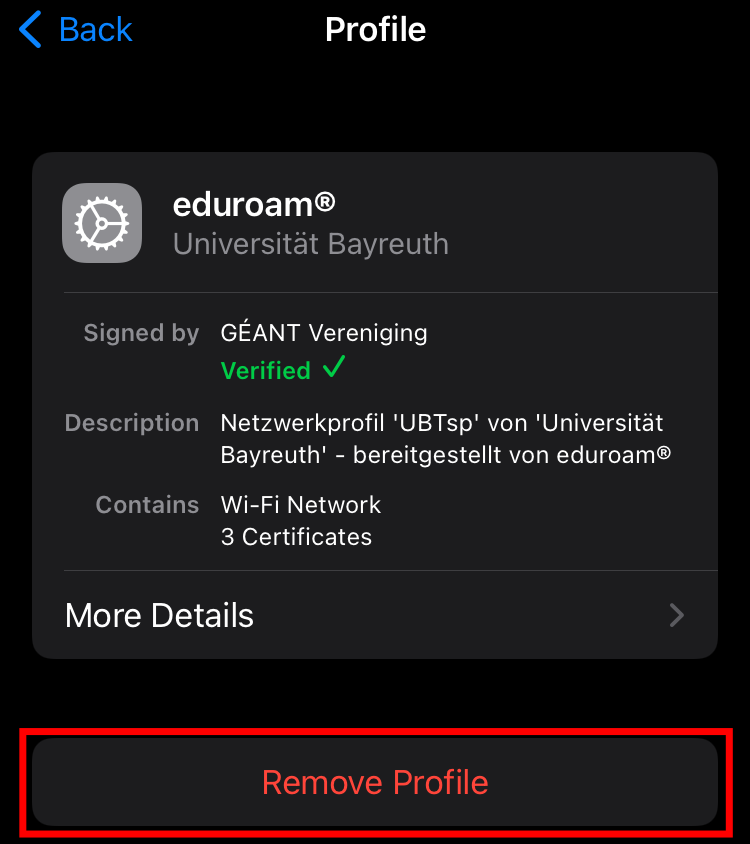
Tap on Remove Profile and enter your passcode (if necessary).
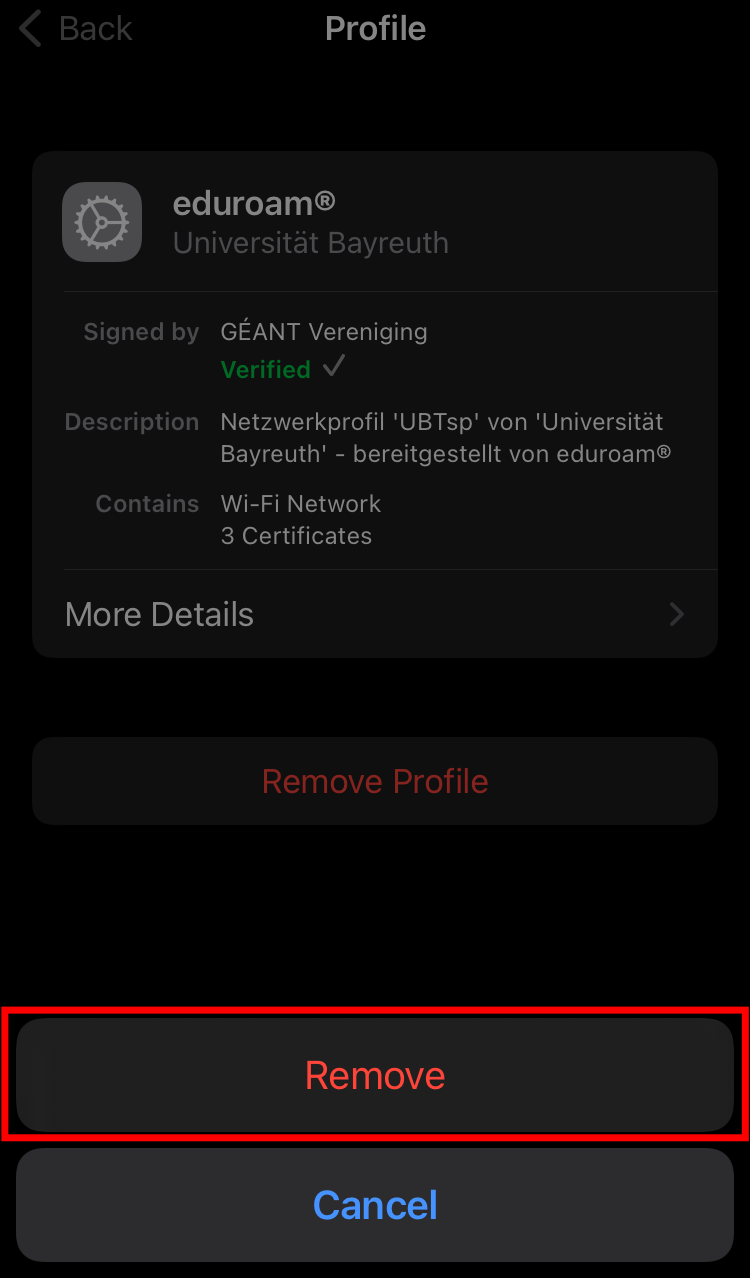
Confirm the action by tapping Remove on the bottom of your screen.
Now, go back to the main menu of your Settings App and open Wi-Fi.
Tap on the i to the right of eduroam.
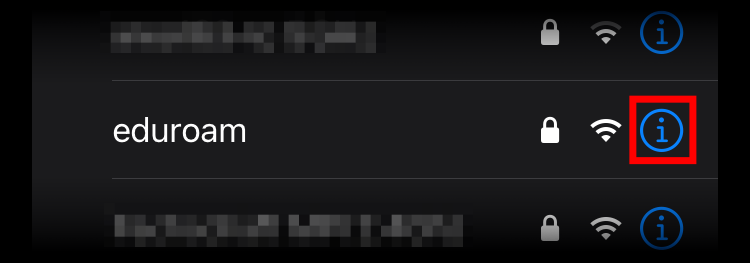
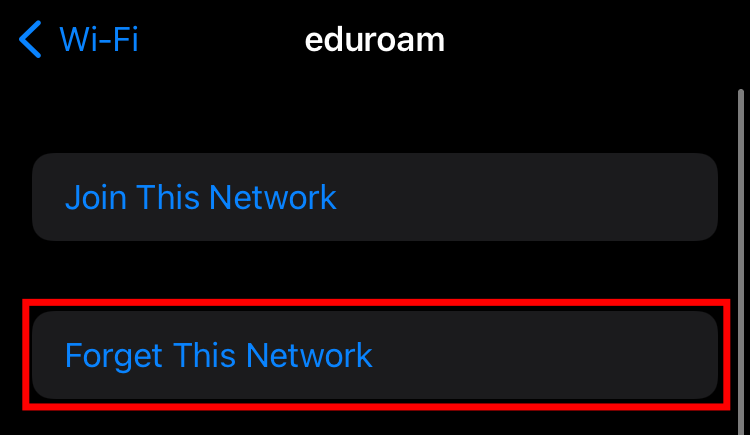
In case there is option to Forget this Network, tap on it and then on Forget again.
If there is just the option to Join this Network, you don't have to do anything here.
Please do not try to connect to eduroam here - it would not work. Please follow our tutorial on how to set up eduroam again (link in the next step).
That's it! You have successfully removed the eduroam network from your device.
If you want to connect to it again, please follow our instructions for setup (click here)!