

This is how you connect your macOS 13 (Ventura) or 14 (Sonoma) device to eduroam:
If eduroam is already set up on your device, please remove it first.
Instructions can be found here.
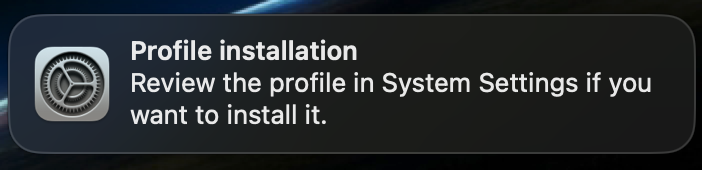
Download our eduroam Profile for Apple devices and open it with a double click. Once it has been loaded successfully, a notification will appear up right on your screen.
If your device has no internet connection you can use the openly available @BayernWLAN-WiFi on campus.
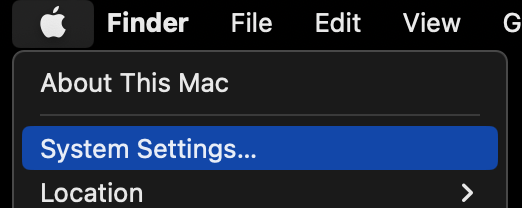
Click on the Apple icon up left and then System Settings...
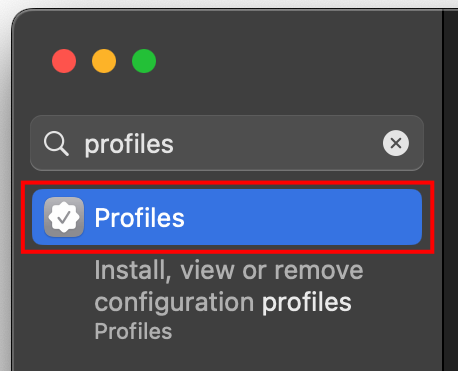
Enter Profiles into the search field (up left) of the System Settings window.
Below the field, there should be an entry called Profiles. Click it.
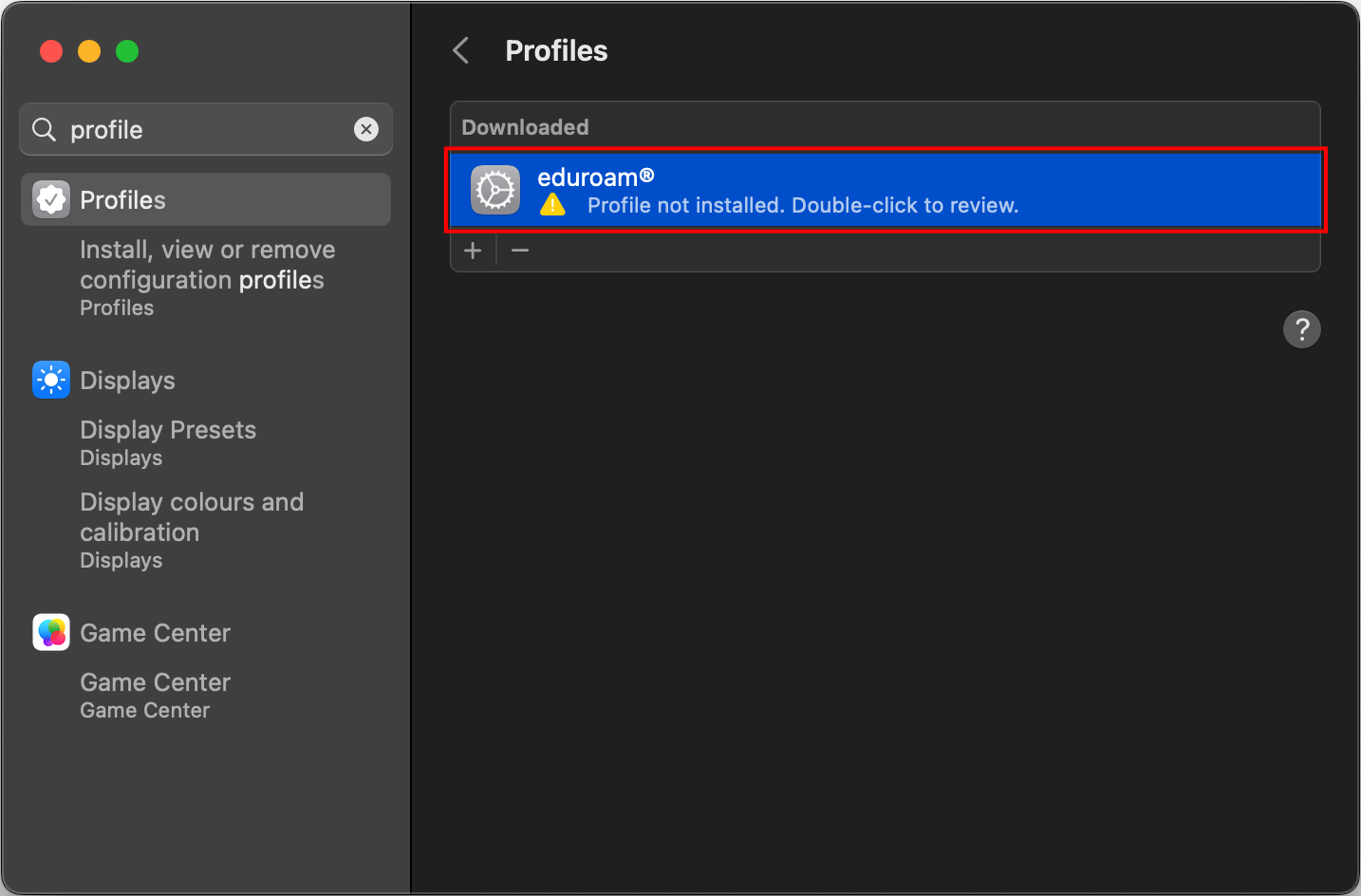
Under Downloaded, search for the eduroam profile and double-click it.
Click on Install...
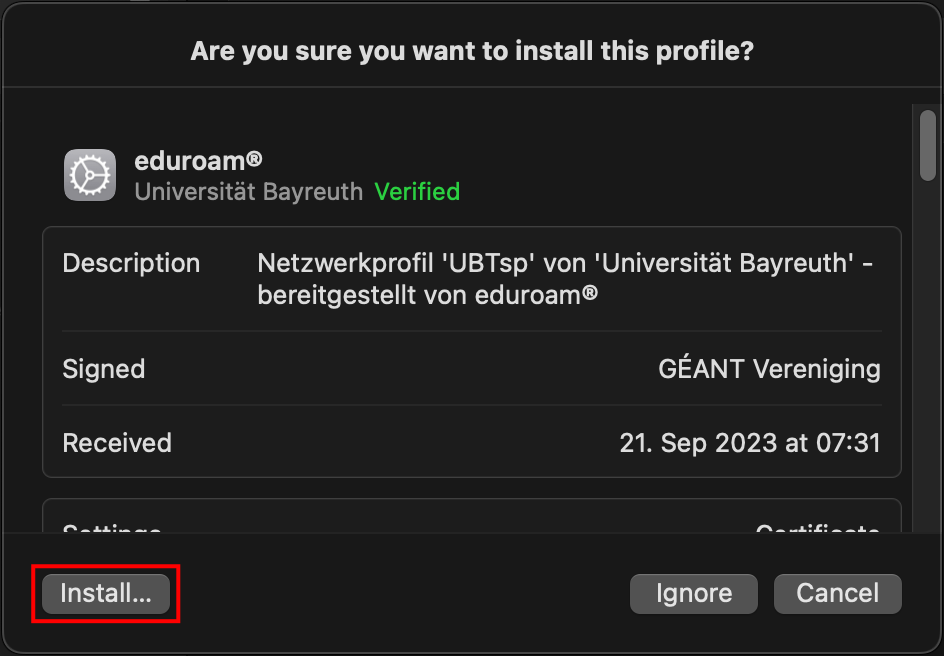
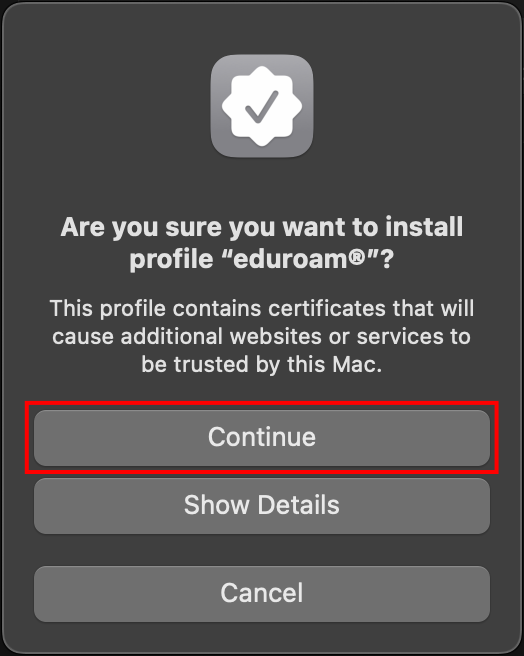
Click on Continue.
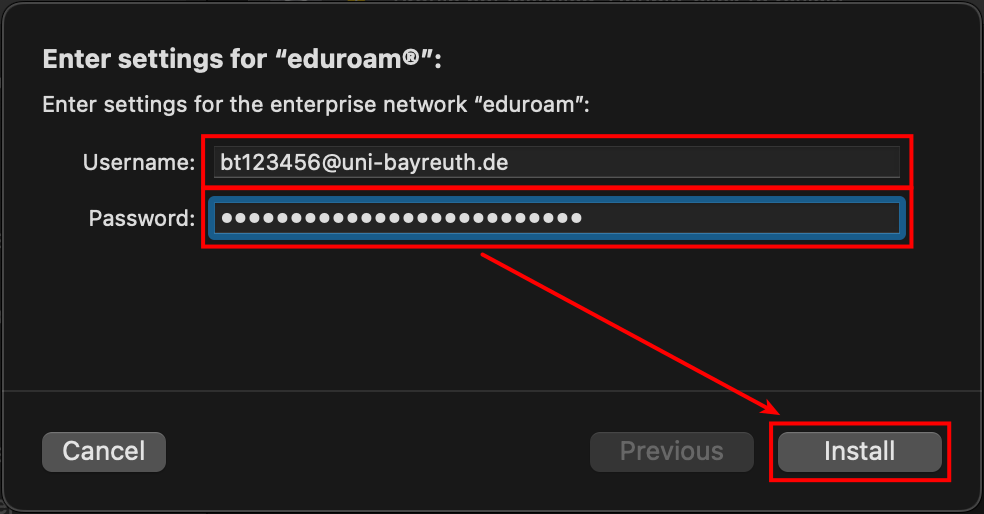
In the now apperaring window, enter your Uni username + @uni-bayreuth.de as username (e.g. bt123456@uni-bayreuth.de) and the respective password. After that, click Install.
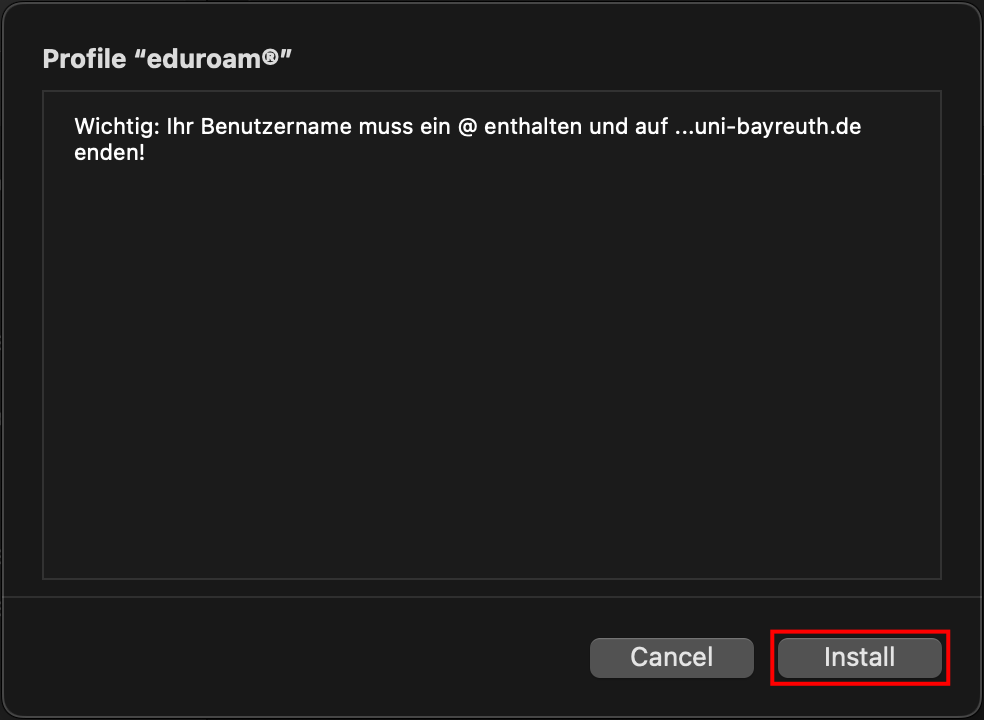
If there are more windows appearing, confirm them all by clicking Next or Install.
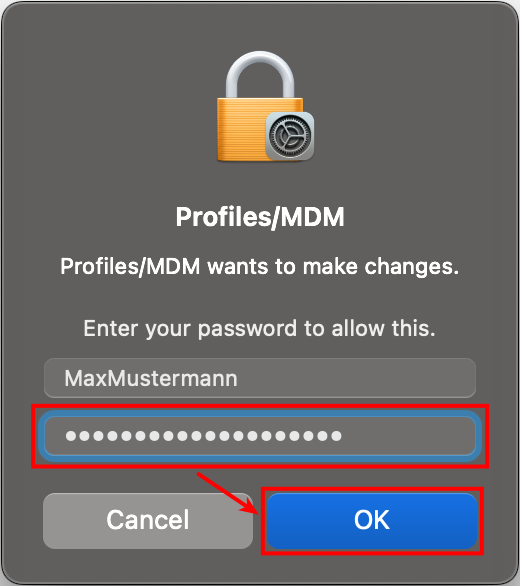
When prompted, enter the password of your Mac (not of your Uni user account!) and click OK.
That's it! If you used the @BayernWLAN WiFi you should remove it from your device so it won't automatically connect unintentionally.