

This is how you connect your Android device with eduroam (manual server certificate import):
If eduroam is already set up on your device, please remove it first.
Instructions can be found here.
Import the CA certificate HARICA TLS RSA Root CA 2021:
Start the browser that was preinstalled on your Android device and open the page:
https://helpdesk.its.uni-bayreuth.de/andcrt (or use the qr code)
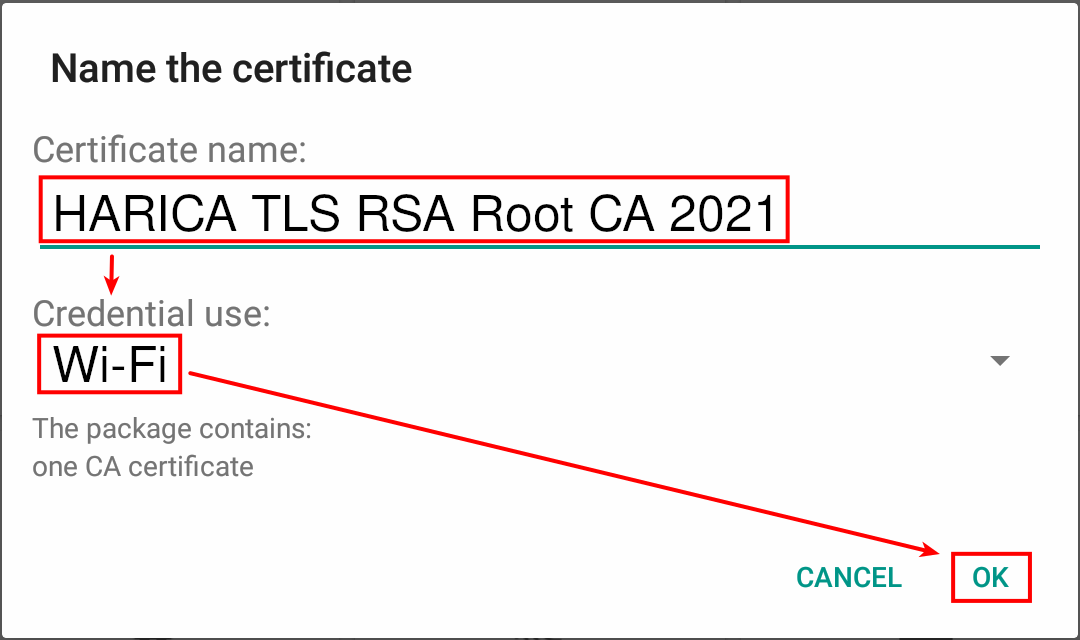
Enter HARICA TLS RSA Root CA 2021 (or similar) as name and choose Wi-Fi as credential use.
If that does not work: Some Android versions won't start the certificate import right after opening the above-named URL. You have to download the file and open it manually.
On one of our test devices, we had to open the downloaded file from within the Settings-App:
Settings -> Security -> Encryption & credentials -> Install a certificate -> Wi-Fi certificate -> choose the certificate you have downloaded -> enter HARICA TLS RSA Root CA 2021 (or similar) as name and tap OK.
If your device has no internet connection you can use the openly available @BayernWLAN-WiFi on campus.
Now connect to the eduroam-WiFi network.
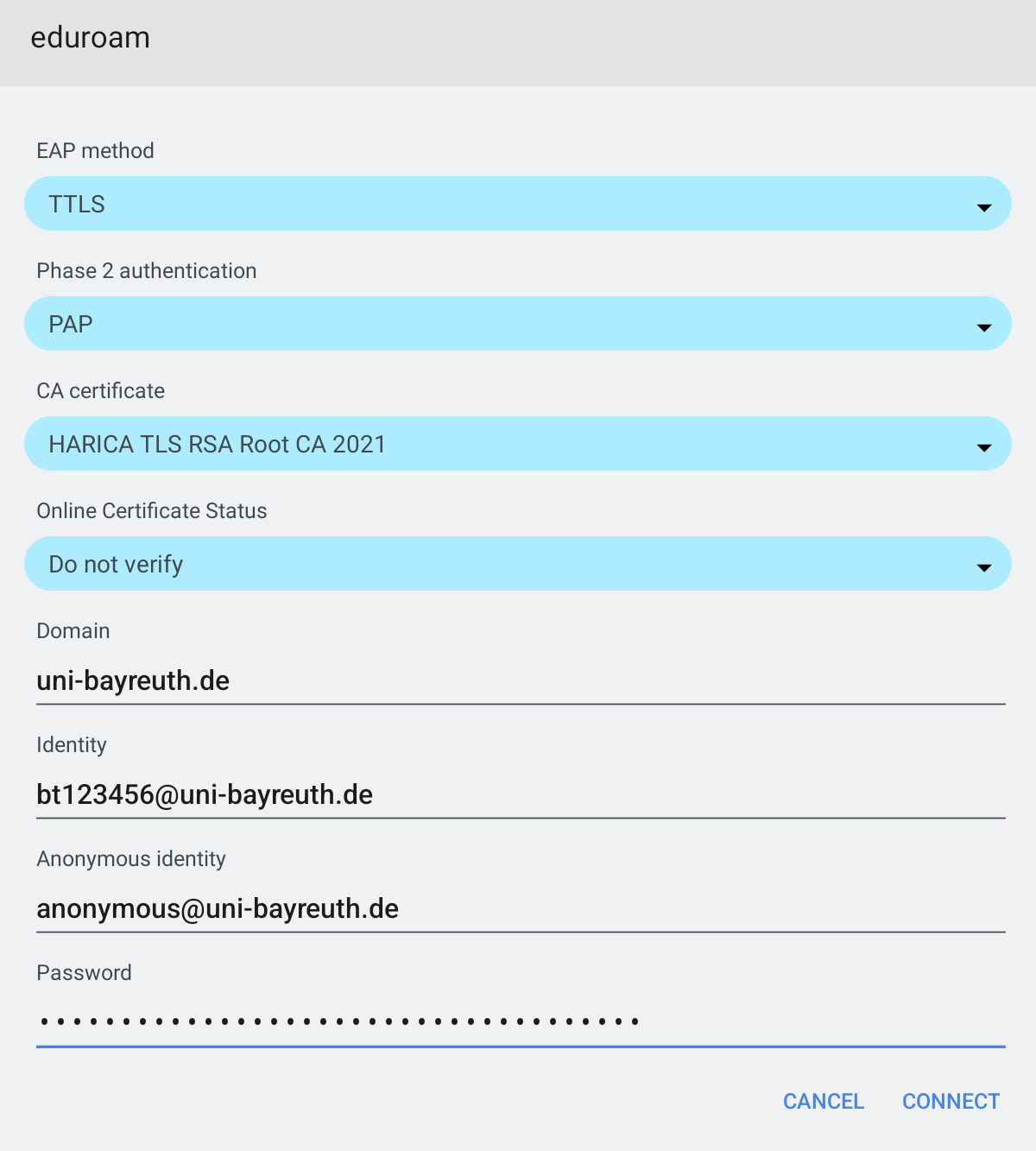
Use the following settings:
- EAP method: TTLS
- Phase 2 authentication: PAP
- CA certificate: (The certificate you added in the previous step)
- Domain (if present): uni-bayreuth.de
- Identity: Your Uni username + @uni-bayreuth.de (z.B. bt123456@uni-bayreuth.de)
- Anonymous identity: anonymous@uni-bayreuth.de
- Password: Your Uni password
Make sure that the Android autocorrect function does not add spaces after the entries!
That's it! If you used the @BayernWLAN WiFi you should remove it from your device so it won't automatically connect unintentionally.