This is how you set up your mail account on your macOS device with Outlook:
Open Outlook.
If you don't have it installed yet, here are the instructions.
If you don't have Outlook / your Office package from the Uni Bayreuth, please follow steps 1-5 from the linked instructions anyway. This will provide you with a Microsoft Account for your Uni Bayreuth credentials.
Without that, the mail setup will most likely fail.
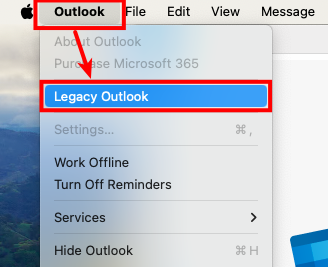
If you are using the "New Outlook" (default with new installations), you have to revert to "Legacy Outlook" first.
To do that, up top, click Outlook -> Legacy Outlook and confirm the change. If this option does not exist, you are probably already using the legacy version.
If you are being asked for feedback, just send it without filling out anything.
Now, Outlook might offer you to add a new mail account - and maybe even show your Uni Bayreuth Account already. If so, please click it to continue.
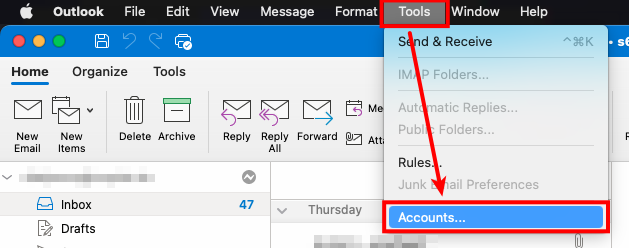
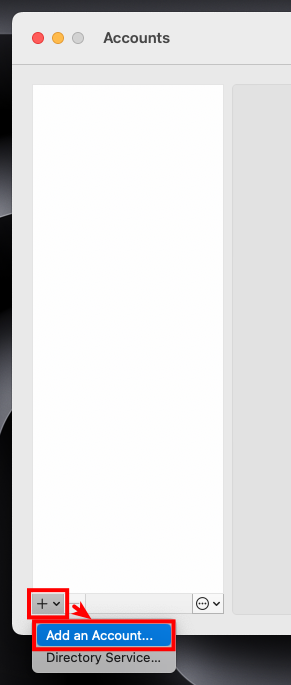
If there is no prompt appearing automatically, up top, click Tools -> Accounts..., then the plus sign down left and finally Add an Account...
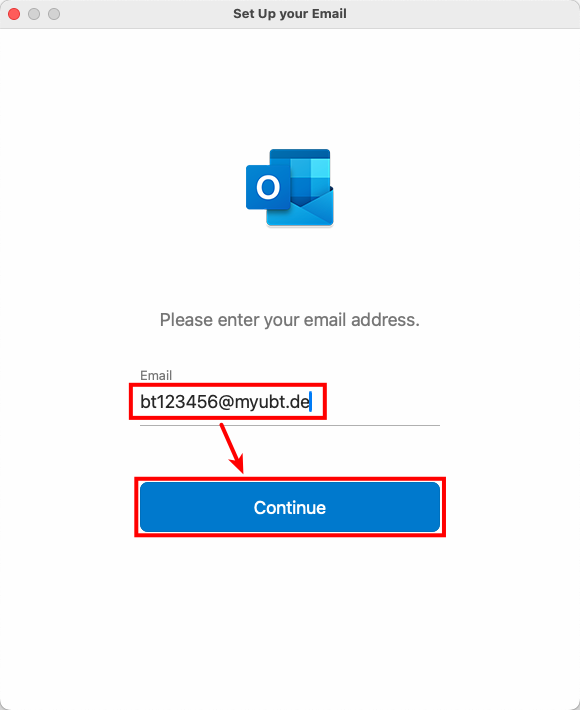
In the new appearing window, enter your Uni Bayreuth username + @myubt.de (e.g. bt123456@myubt.de) and click Continue.
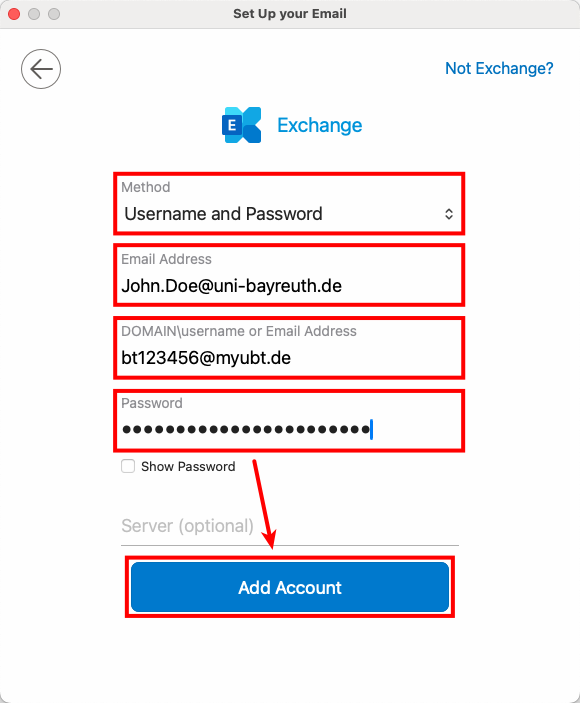
In the next step, enter your data as shown in the screenshot, so:
- Method: Username and Password
- EMail Address: Your Uni Bayreuth mail address (usually Firstname.Lastname@uni-bayreuth.de)
- Domain\username or EMail Address: Your Uni Bayreuth username + @myubt.de (e.g. bt123456@myubt.de)
- Password: Your Uni Bayreuth password
Confirm by clicking Add Account.
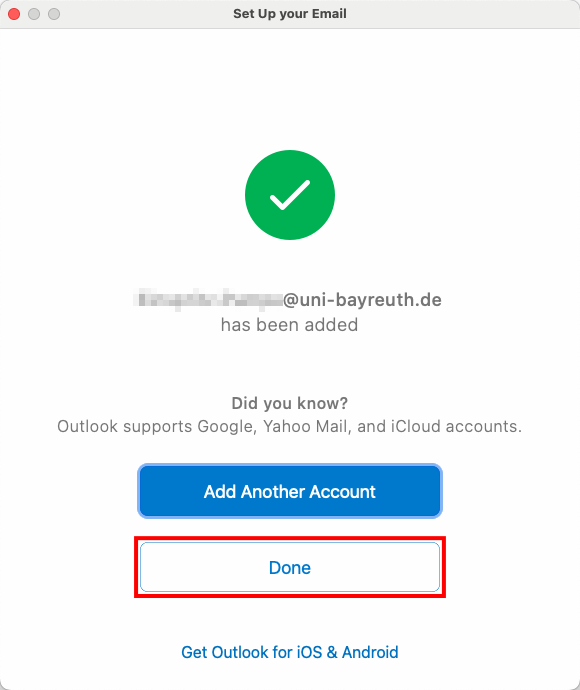
Your Uni Bayreuth account should have been added now. Click Done to finish.