Risk of data loss!
With this certificate, you can digitally sign emails and/or send and receive encrypted messages.
Please note that encrypted emails are no longer readable without the corresponding certificate!
Even if the certificate has already expired, it will still be needed!
You have no control over others sending you encrypted emails. Store the certificate (especially the private key) and the associated password in a safe place.
The ITS cannot help you if the private key and/or password gets lost. Encrypted emails are then irretrievably lost and can no longer be read or restored from a backup.
This is how you can send digitally signed mails with Apple Mail under macOS:
To send digitally signed mails, you need
- your personal certificate and the corresponding password (instructions here)
- Apple Mail with your Uni Bayreuth mail account set up (instructions here)
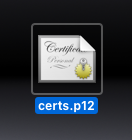
Open your certificate file (e.g. certs.p12) by double clicking it.
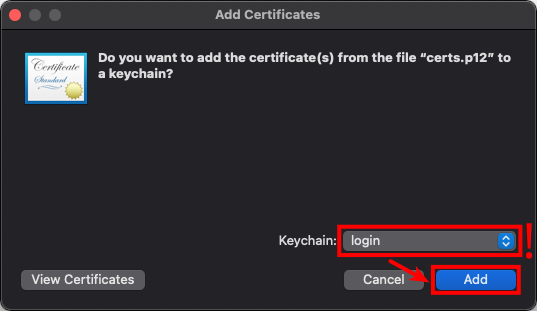
A prompt opens, asking if the certificate should be added to your keychain.
Next to Keychain:, select login and click on Add.
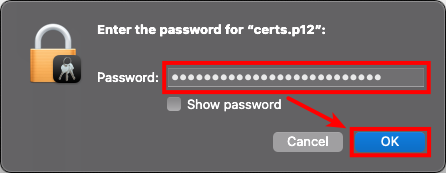
Afterwards, enter the password for your certificate file. You have defined it during the download of your certificate – it is independent from your Uni Bayreuth user account password!
Click on OK.
Your certificate was added to the keychain.
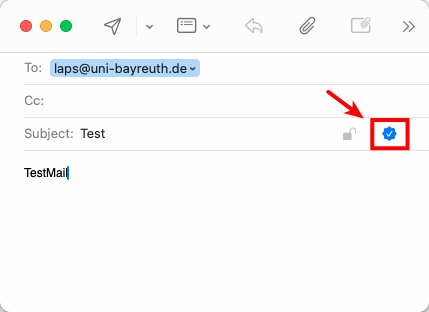
Now, open Apple Mail and compose a new e-mail from your university address. If you can see a blue checkmark next to Subject, the setup is complete and from now on, your mails will be sent digitally signed.
If not, please continue.
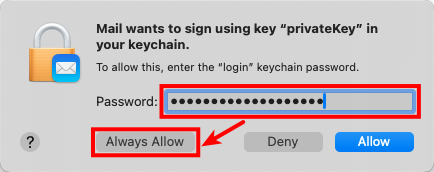
You might get asked for your keychain password. Per default, this is the login password for your Mac. If necessary, please enter it and click Always allow.
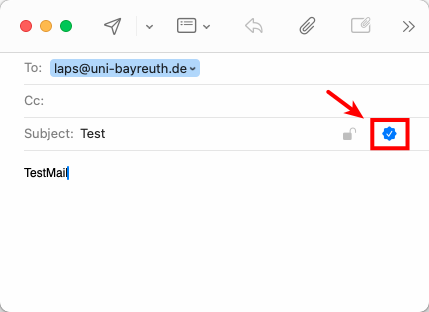
If you can't see the blue checkmark, the mail address in your certificate most likely doesn't match with the one that is set up in Apple Mail.
Firstly, please check which mail address is stored in your certificate. To do so, please open Keychain Access, e.g. by pressing Cmd + spacebar, entering Keychain and clicking on Keychain Access once it shows up.
The email address in your certificate is the default email address that was set in the ITS Portal when the certificate was issued.
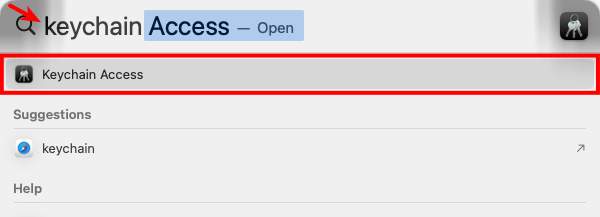
A dialog might open – if so, click Open Keychain Access.
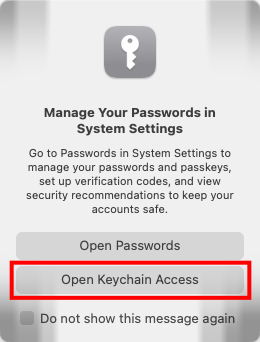
In the now opening window, click login on the left, then open the tab My Certificates up top and double click your certificate in the list below. Per default, it is shown with your first and last name.
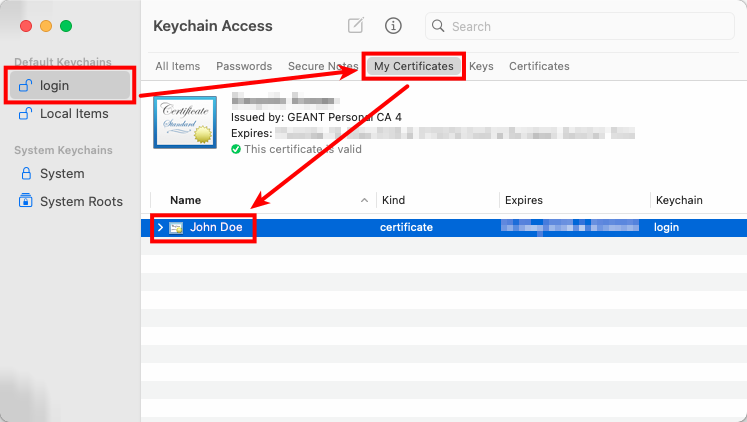
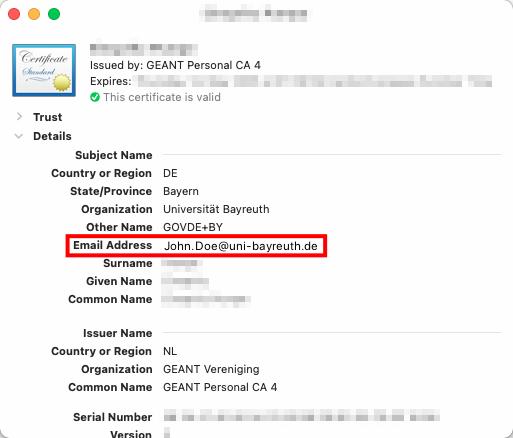
Your certificate's details will now be shown. Under Email Address you can see the address stored in your certificate. It has to be entered exactly like this (case sensitive) into Apple Mail. Ideally, copy it to the clipboard or write it down.
Close all Keychain Access windows and open Apple Mail.
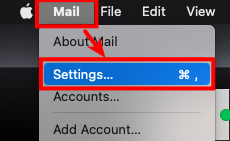
Up top, click Mail -> Settings...
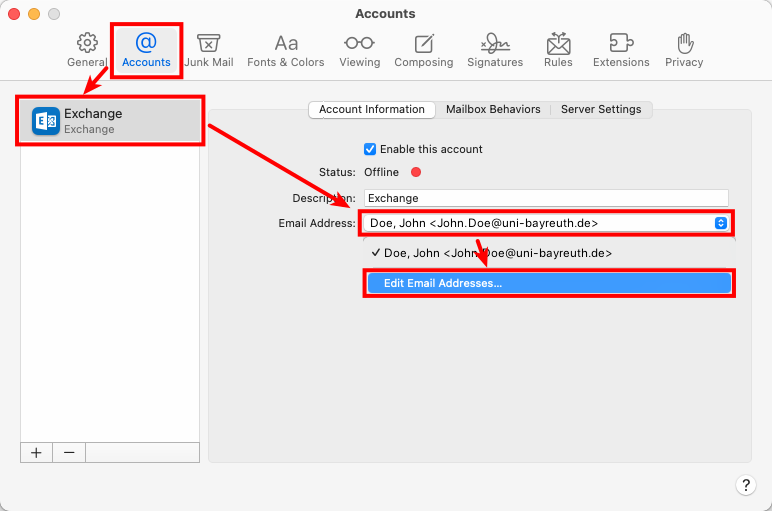
A new window opens. In it, choose Accounts up top, then your Uni Bayreuth mail account on the left.
Check, if the mail address next to Email Address matches the one from your certificate exactly. If not, click it and then go to Edit Email Addresses
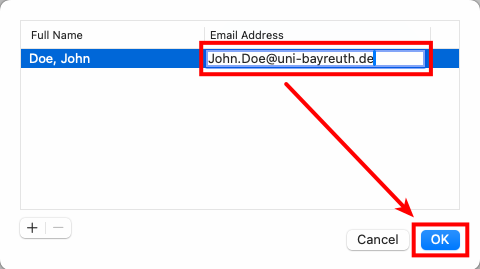
In the new dialogue, click on your e-mail address two times slowly after each other. You can now edit it to match the one in your certificate. Confirm with OK.
Back in the main window of Apple Mail, compose a new e-mail from your Uni Bayreuth account again and make sure that the blue checkmark is being shown now. If so, your mails will be sent digitally signed from now on. If not, please contact us.