This is how you set up your mail account on your macOS device with Apple Mail:
For these instructions to work, Microsoft 365 has to be enabled in your Uni Bayreuth user account.
Steps 1-5 of these instructions describe how you can give the required Privacy Permissin Statement. This only has to be done once, so if you have already given the statement in the past, please skip to Step 6 now.
If you have not given the statement yet, go to https://portal.its.uni-bayreuth.de now and log in with your university username and the respective password.
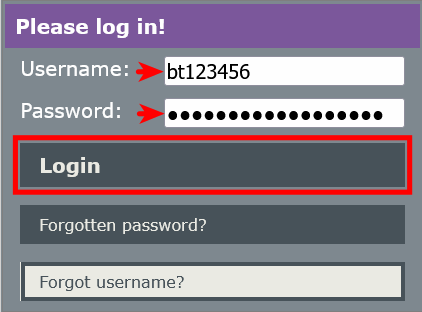
Click on Approvals.

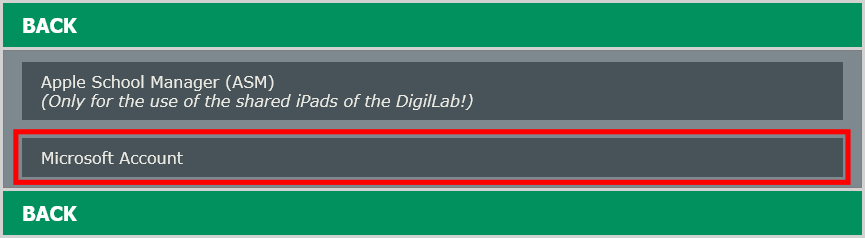
Select Microsoft Account.
Accept the Privacy Permission Statement (if not already accepted) and click on Save changes.
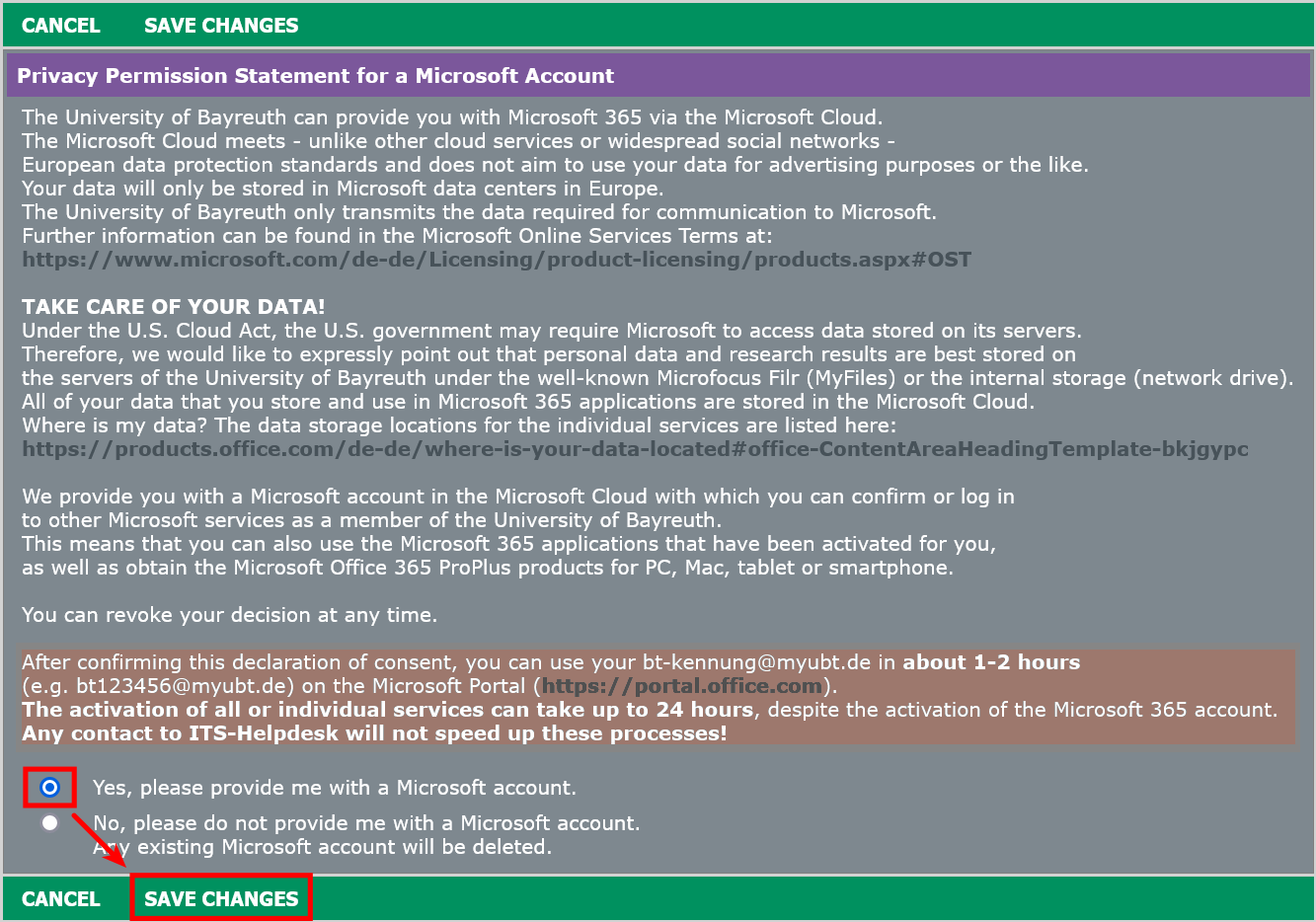
Important: After giving the Privacy Permission Statement, it takes 1 - 2 hours until your Microsoft Account will be activated. In rare cases it can take up to 24 hours. Please wait before you continue to follow the instructions.
Open Apple Mail. If you don't have any mail accounts set up yet, the setup wizard will start right away and you can skip to the next step.
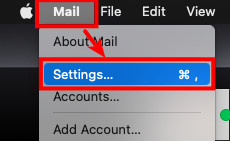
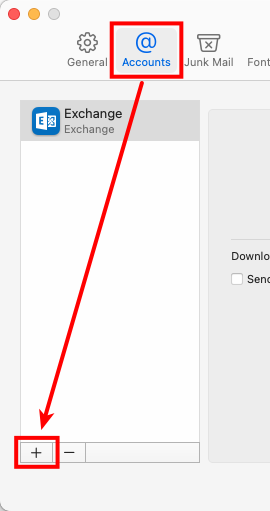
Otherwise, in the bar up top, click Mail -> Settings, then choose the tab Accounts and click the plus sign at the bottom.
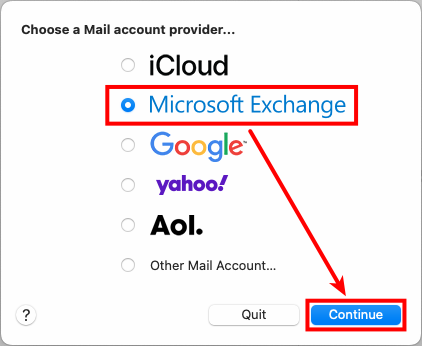
Select Microsoft Exchange and click Continue.
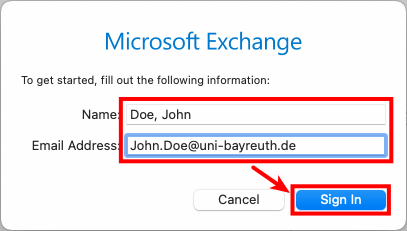
Now enter your full name and your Uni Bayreuth e-mail address (usually Firstname.Lastname@uni-bayreuth.de). Click Sign In.
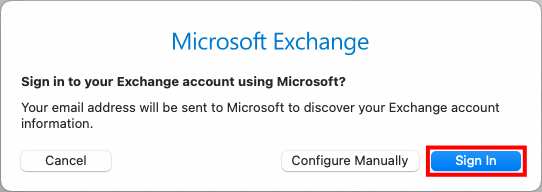
Click Sign In again.
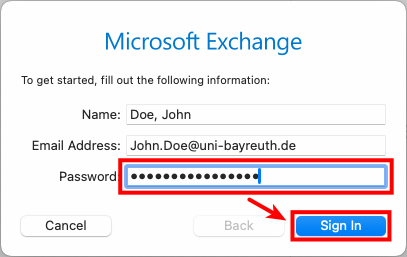
Now enter the Password for your Uni Bayreuth account and click Sign In again.
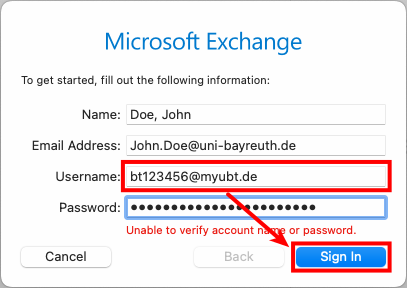
Attention: The sign in will fail at first – this is normal since the correct username still has to be specified. So just continue with the next step.
After you see the error message, next to Username: enter your Uni Bayreuth username + @myubt.de (e.g. bt123456@myubt.de) and click Sign In one more time.
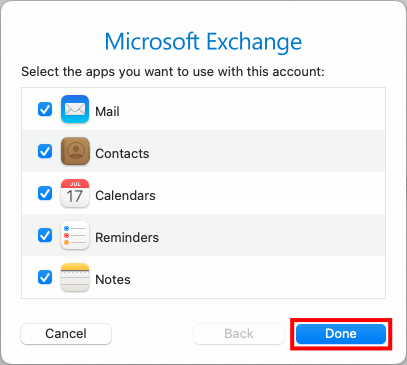
Now just select everything you want to sync with your device and click Done.
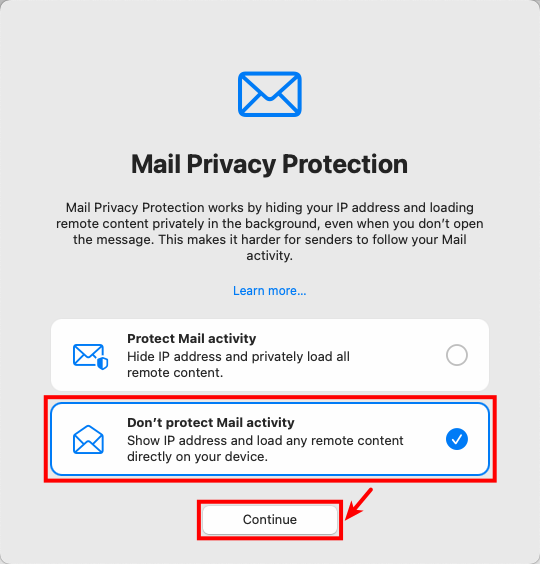
If you get asked about Mail Privacy Protection, we recommend disabling it.