Use the public LAN ports in library and lecture halls
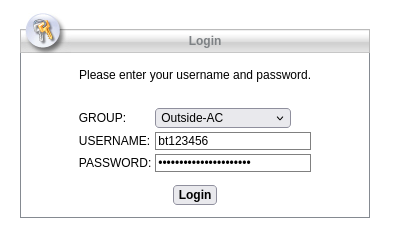
To download the Cisco Secure Client (in the past: Cisco AnyConnect), open the website https://vpn-server.uni-bayreuth.de in your browser. Then, under GROUP: select one of the two Outside-Profiles (!) and enter your **Uni username (e.g. bt123456) and the respective password.
Now, click Login.
Open the website using the device you want to install the VPN software onto. Your operating system will be automatically detected, there is no option to choose it manually.
Click the Download button which appears after the login.
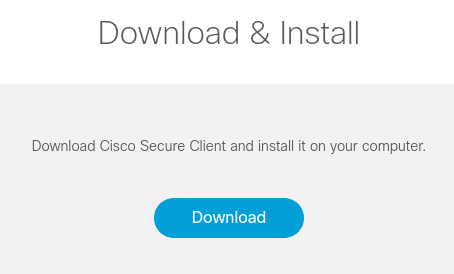
Install the file you have just downloaded by double clicking on it. Follow all instructions given by the installation routine.
Connect your Windows device with a LAN Cable.
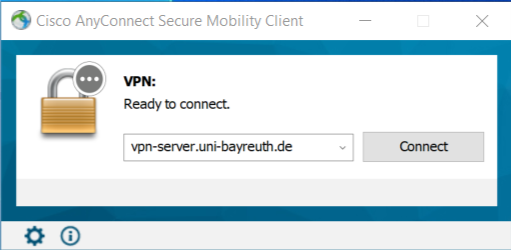
Start the Cisco Secure Client from the folder Cisco in your application list.
Enter the server address vpn-server.uni-bayreuth.de and click on Connect.
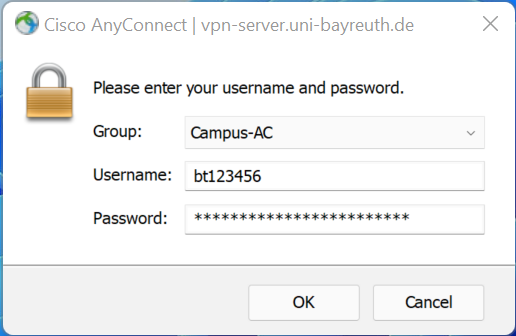
Select the Campus-profile and enter your Uni username (without "additions") and the corresponding password. Click on OK.
When the connection is successfully established the Cisco Secure Client will disappear into the tray bar down to the right.
If the login window does not appear, even though the server address was entered correctly, please make sure that your network adapter is set to DHCP. Detailed instructions can be found here.