

This is how you connect your ChromeOS device with eduroam:
1
If eduroam is already set up on your device, please remove it first.
Instructions can be found here.
2
Open the Chrome Browser and download the configuration profile for Chrome OS:
https://helpdesk.its.uni-bayreuth.de/educhrome (or use the qr code)
Notice
If your device has no internet connection you can use the openly available @BayernWLAN-WiFi on campus.
If your device has no internet connection you can use the openly available @BayernWLAN-WiFi on campus.
3
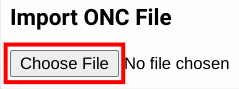
Open chrome://network/#general in the Chrome Browser and scroll down to the entry Import ONC File.
Click on Choose File and open the file that was downloaded in step 1.
The profile will be imported immediately and without notice.
Notice
In older versions you might have to use the link chrome://net-internals/#chromeos.
In older versions you might have to use the link chrome://net-internals/#chromeos.
4
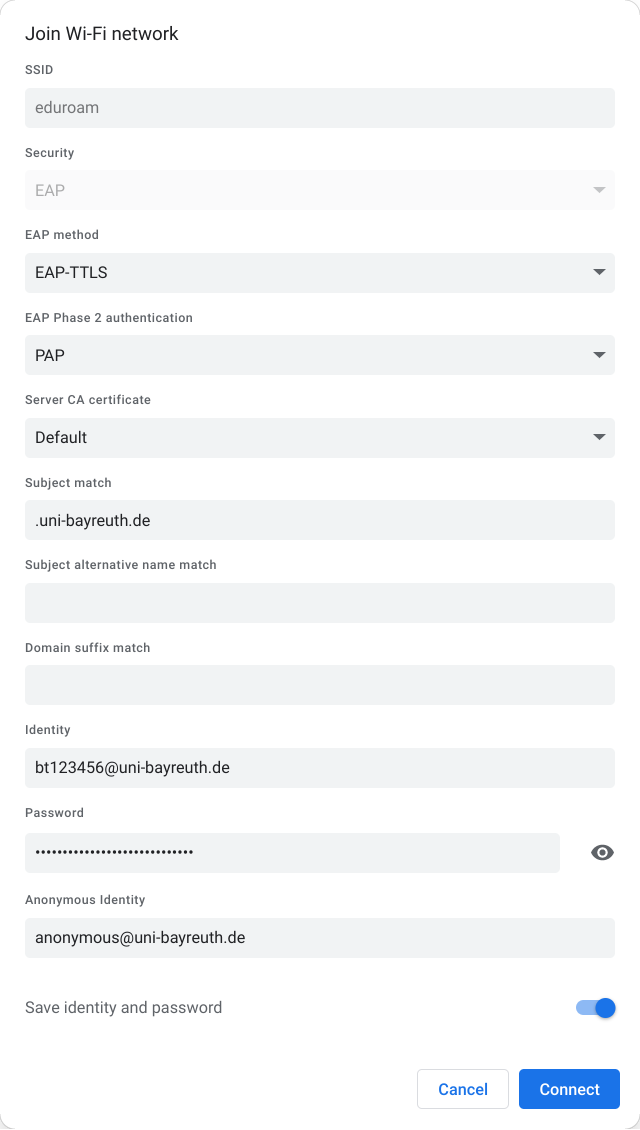
Now connect to the eduroam-WiFi network.
Use the following settings:
- EAP method: (EAP-)TTLS
- EAP Phase 2 authentication: PAP
- Server CA certificate: Default
- Subject match: .uni-bayreuth.de (should already be filled in)
- Subject alternative name match: keep empty
- Domain suffix match: keep empty
- Identity: Your Uni username + @uni-bayreuth.de (e.g. bt123456@uni-bayreuth.de)
- Password: Your Uni password
- Anonymous Identity: anonymous@uni-bayreuth.de (should already be filled in)
5
That's it! If you used the @BayernWLAN WiFi you should remove it from your device so it won't automatically connect unintentionally.
Problems with these instructions? Let us help you! Contact us fast and easy through our contact form!