

This is how you setup FollowMe-Printing on your macOS device:
Download the QPilot software for macOS.
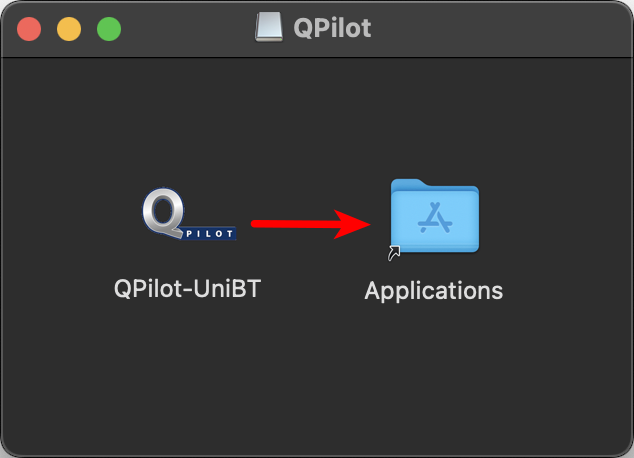
Open the disk image with a double click and copy the included program Q Pilot Client into your Applications folder.
Start it with a double click and enter the password of your macOS device when asked to.
Now start the QPilot-UniBT Client from your Applications folder by double clicking it and enter the password of your macOS device when asked. On the first start, the university printer will be installed, which might take a little while.
If your Mac has a Apple Silicon processor, Rosetta 2 is required. If you haven't installed it yet, you will be offered to on the first start of the QPilot Client.
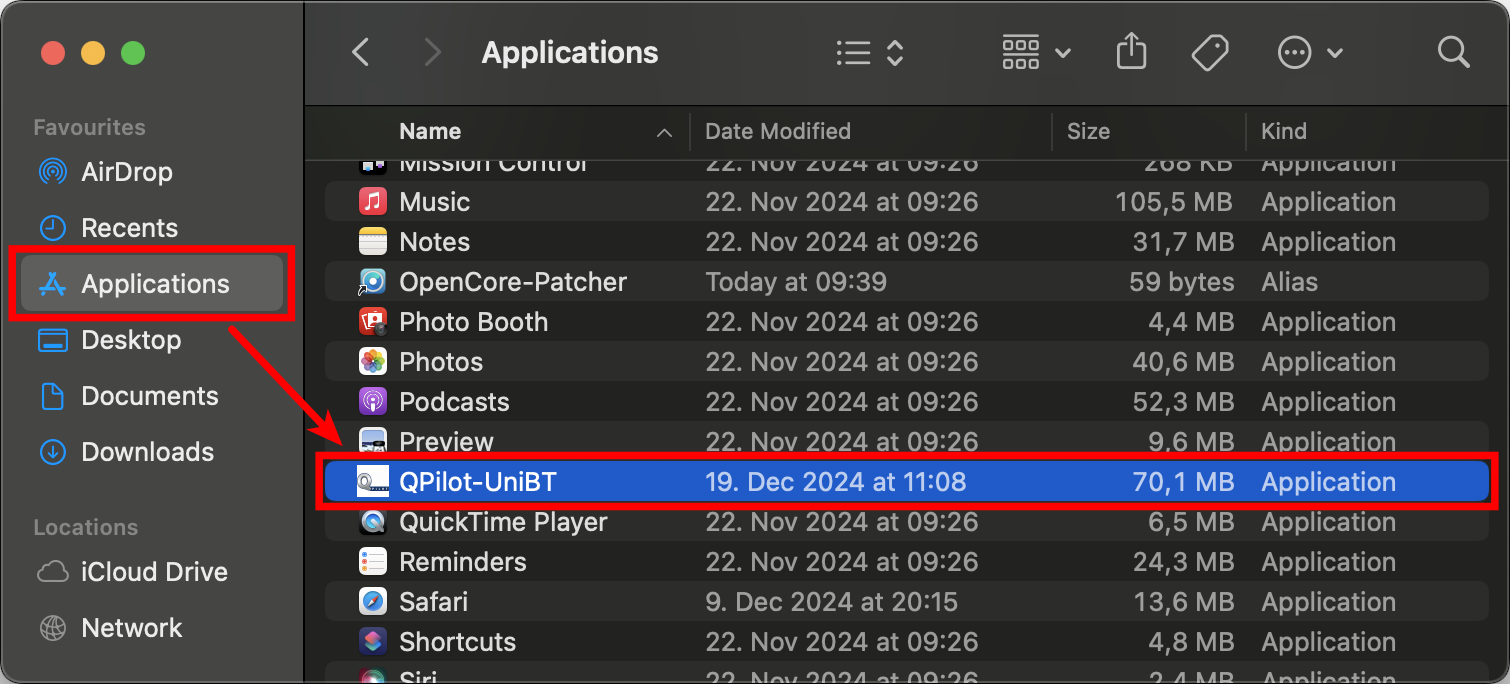
The setup is now completed.
The printer Unidrucker-Bayreuth was added to your system.
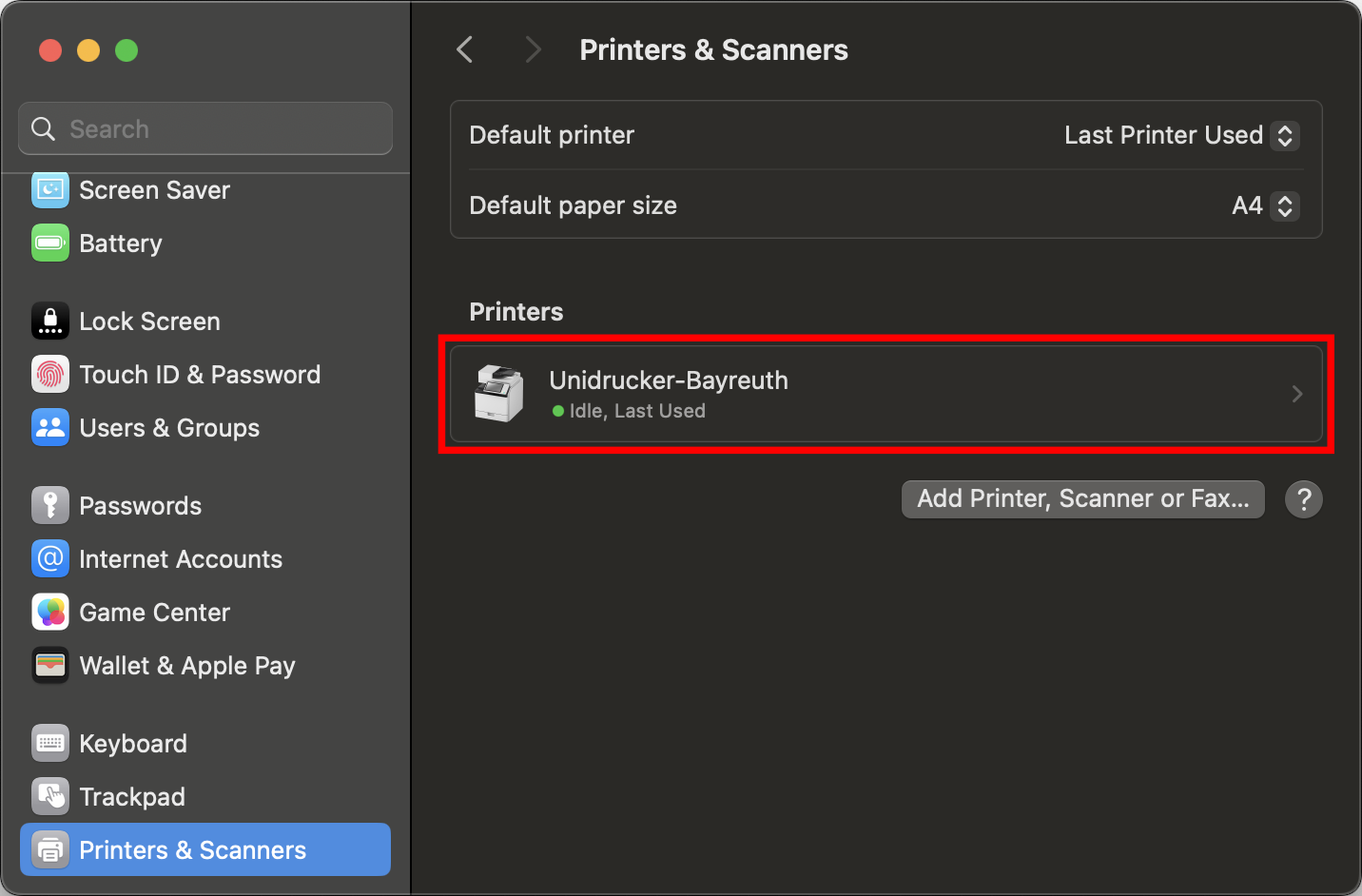
In order to us the printer, start the just installed Q Pilot Client.
As soon as it runs in the background you can send a print job from any application.
Sending print jobs is only possbile from within the Uni Bayreuth network (e.g. eduroam)!
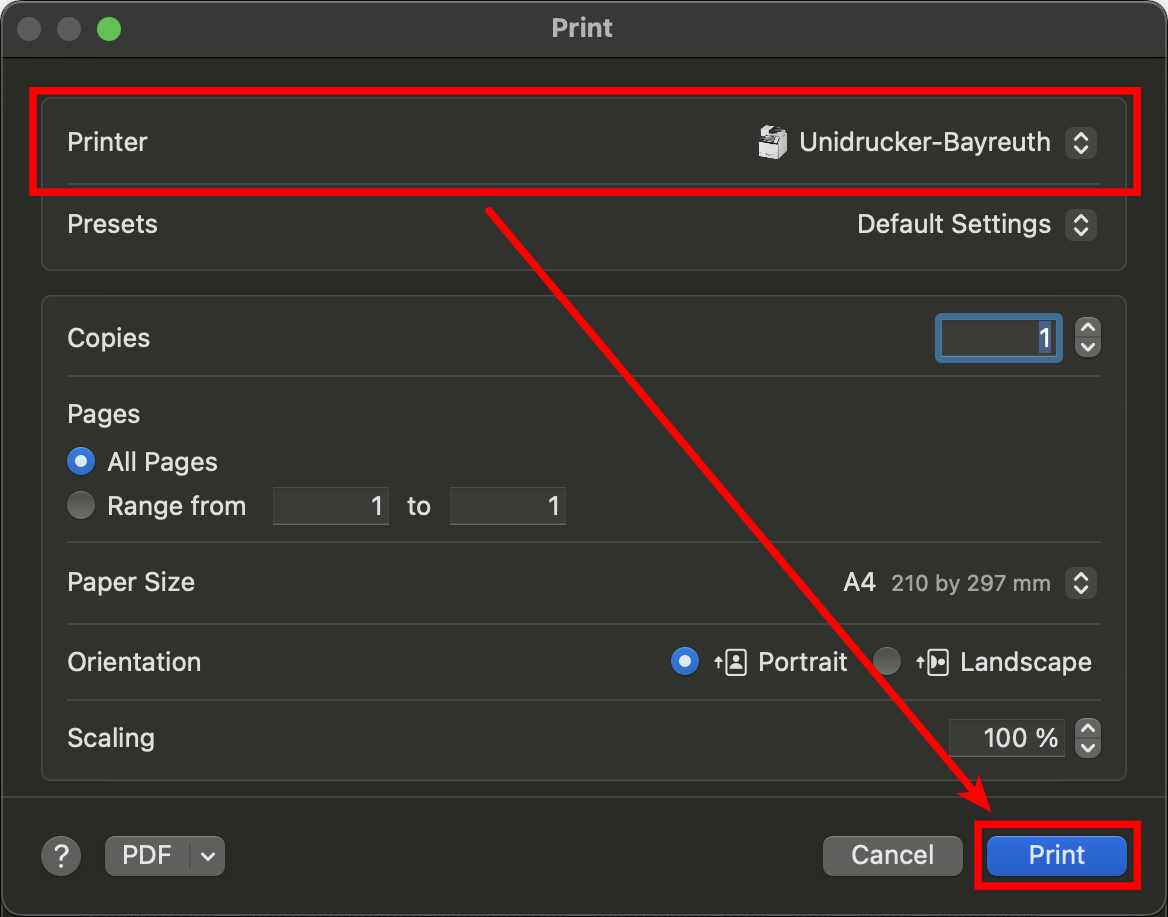
After applying all the desired settings (like A4 as page size, 2-sided printing..) click on Print.
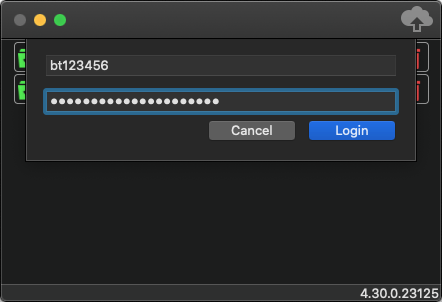
A new window asking for your credentials will appear. Enter your Uni Bayreuth username and the corresponding password. Click Login.
You have to use the username of the Campus Card you want to use for printing!
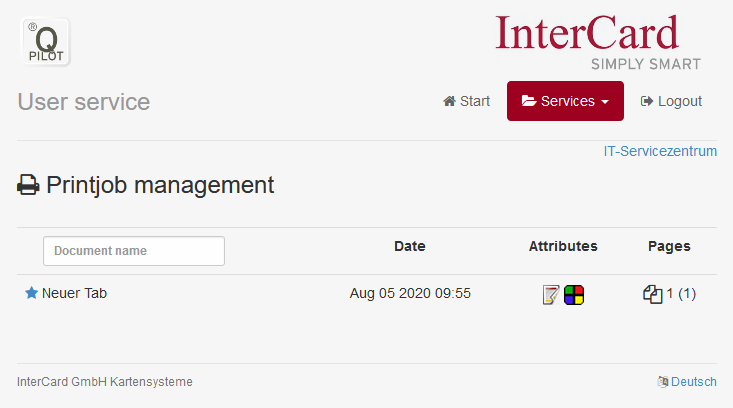
Optional: You can login at https://print.uni-bayreuth.de and click on Printjobs to check if your print job was added correctly.
Go to one of the print stations (an overview can be found here under Print and scanstations) and insert your Campus Card into the terminal.
Now you can print your document(s).