

Using the Outlook app on iOS/iPadOS is not possible.
This is how you set up your mail account on your iOS / iPadOS device:
For these instructions to work, Microsoft 365 has to be enabled in your Uni Bayreuth user account.
Steps 1-5 of these instructions describe how you can give the required Privacy Permissin Statement. This only has to be done once, so if you have already given the statement in the past, please skip to Step 6 now.
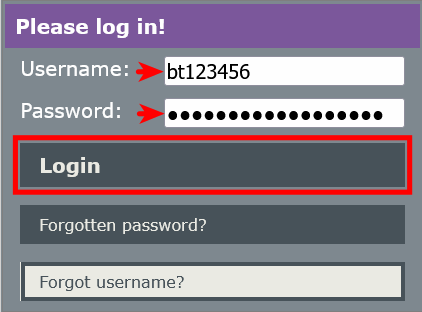
If you have not given the statement yet, go to https://portal.its.uni-bayreuth.de now and log in with your university username and the respective password.
Click on Approvals.

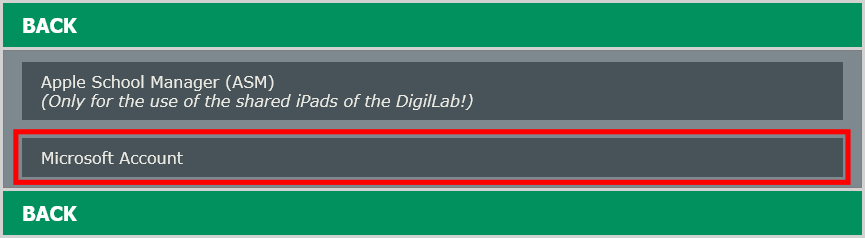
Select Microsoft Account.
Accept the Privacy Permission Statement (if not already accepted) and click on Save changes.
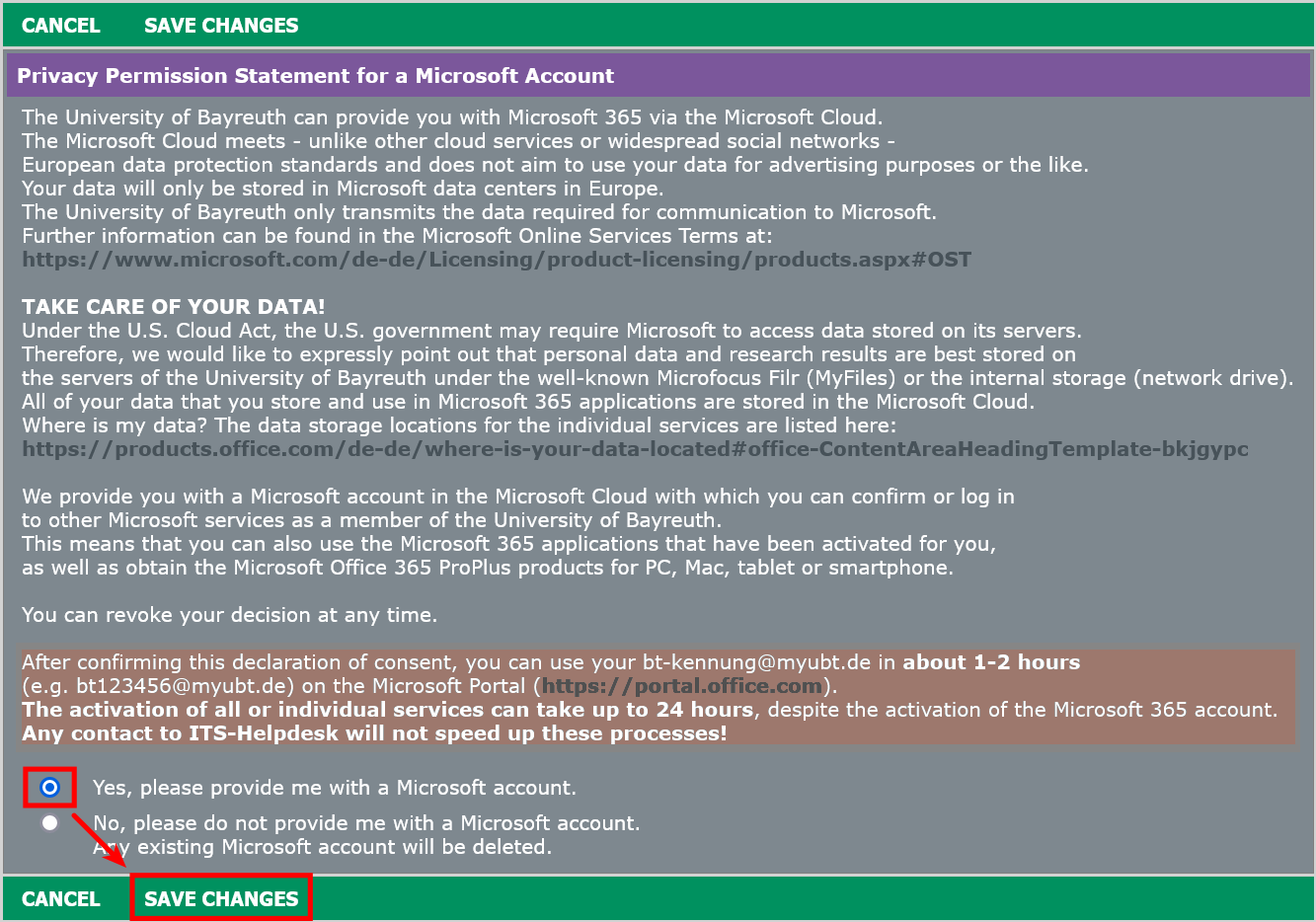
Important: After giving the Privacy Permission Statement, it takes 1 - 2 hours until your Microsoft Account will be activated. In rare cases it can take up to 24 hours. Please wait before you continue to follow the instructions.
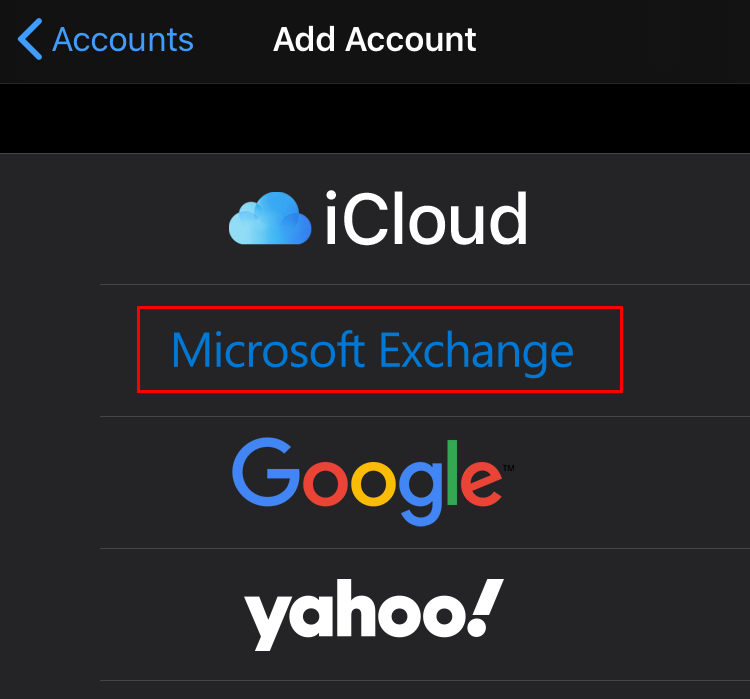
Open the Settings on your device and tap on Passwords & Accounts and Add Account.
Select Microsoft Exchange as account type.
Enter your Uni username + @myubt.de (e.g. bt123456@myubt.de) as Email / username. The description can be set however you want.
Don't use Uni username + @myubt.de as your mail address since it is only the login name!
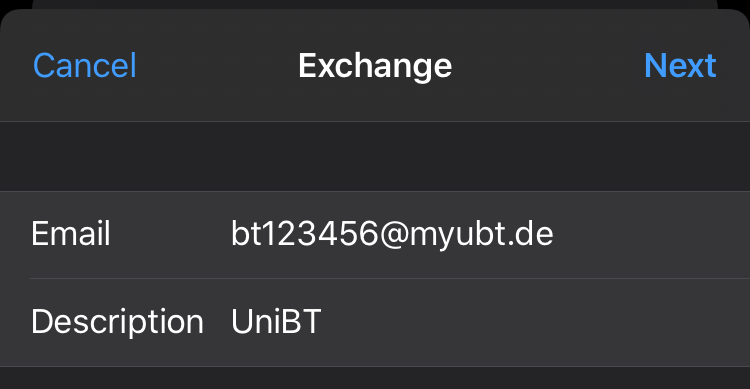
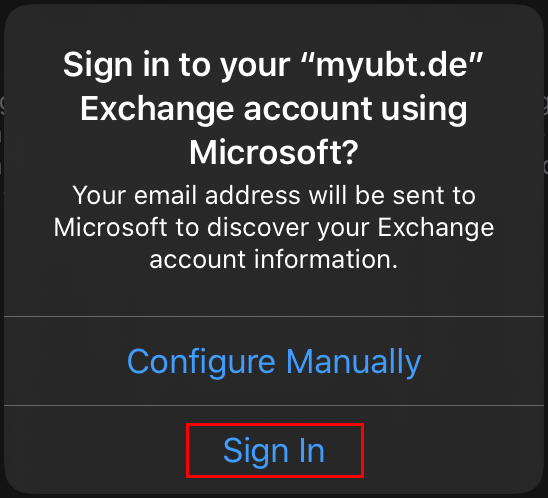
Tap Next and then Sign in.
Enter your Uni password in the next step and tap Next.
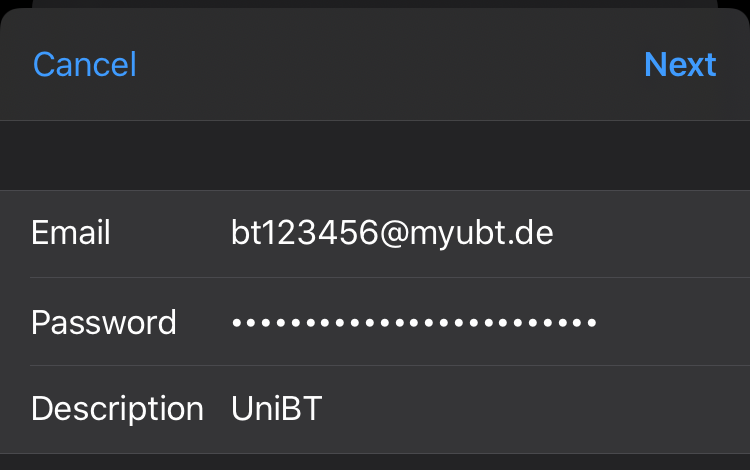
That's it! Your mail account is now available on your iOS device!