Risk of data loss!
With this certificate, you can digitally sign emails and/or send and receive encrypted messages.
Please note that encrypted emails are no longer readable without the corresponding certificate!
Even if the certificate has already expired, it will still be needed!
You have no control over others sending you encrypted emails. Store the certificate (especially the private key) and the associated password in a safe place.
The ITS cannot help you if the private key and/or password gets lost. Encrypted emails are then irretrievably lost and can no longer be read or restored from a backup.
This is how you can download your certificate:
Open the URL https://cm.harica.gr
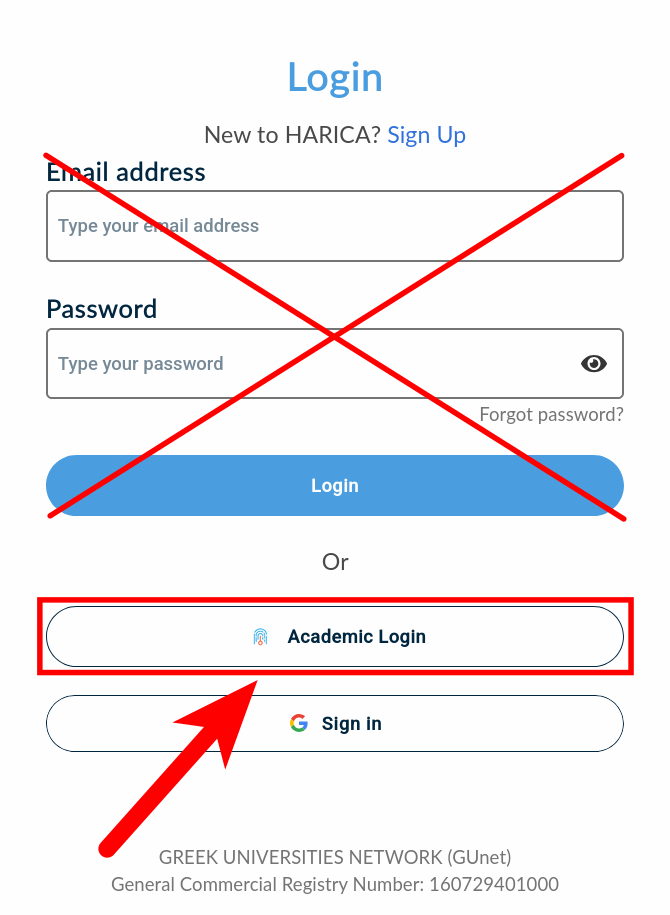
Click on Academic Login.
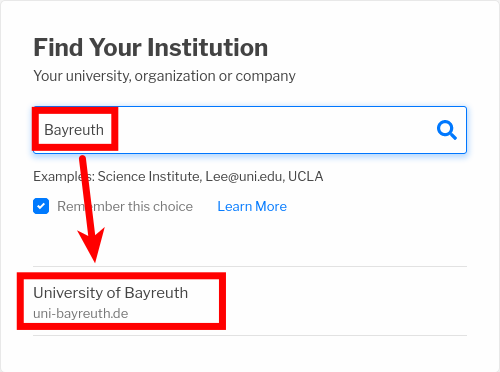
Under Find Your Institution, search for Bayreuth and click on University of Bayreuth.
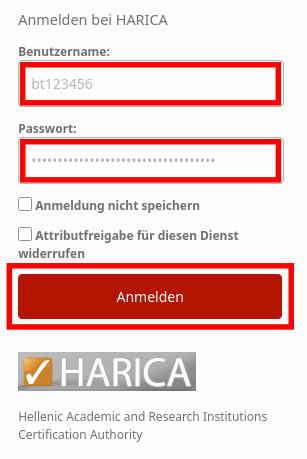
You will be redirected to the login page of the Uni Bayreuth. Please enter your Uni Bayreuth username and password.
After that, click Login.
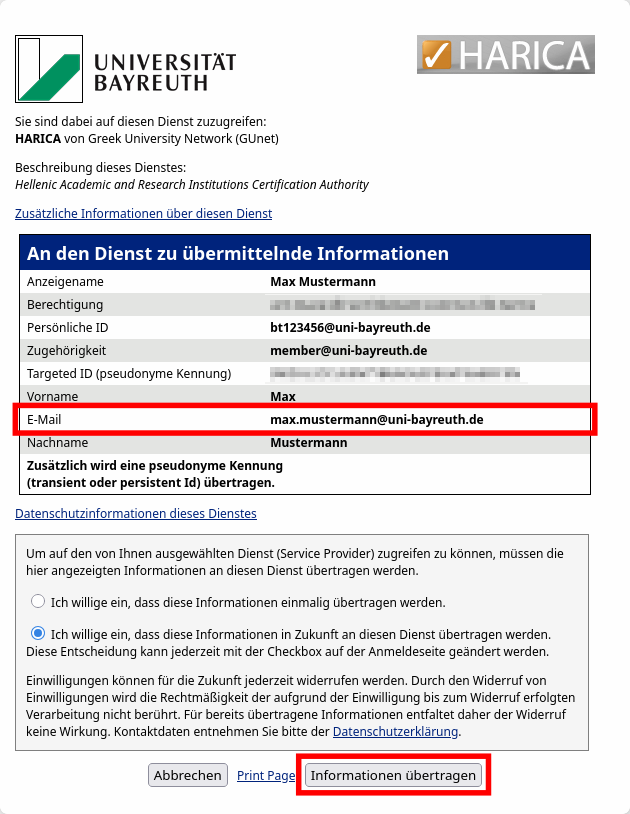
Click Informationen übertragen on the now appearing page.
Under E-Mail, you can see the address that will be used for the certificate. This is your Standard e-mail address which can be set in the ITS Portal (https://portal.its.uni-bayreuth.de). It is very important that you use this exact address to send your e-mails later, otherwise the recipient will see an error message.
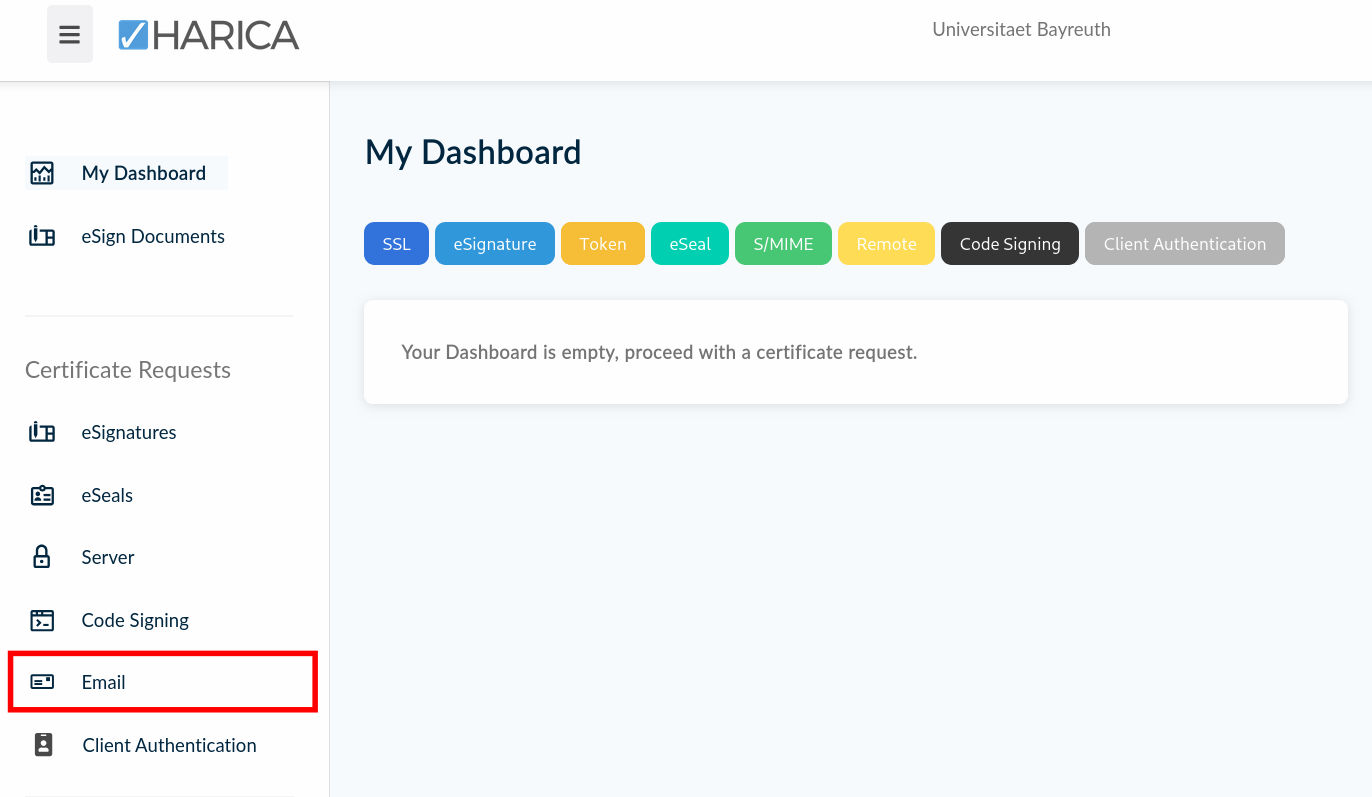
On the left, click on Email.
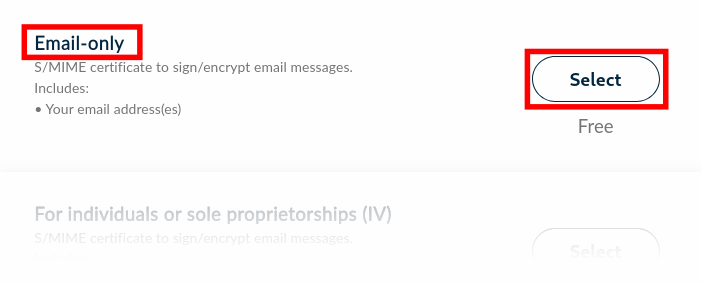
Next to Email-only, click on Select, so it changes to Selected.
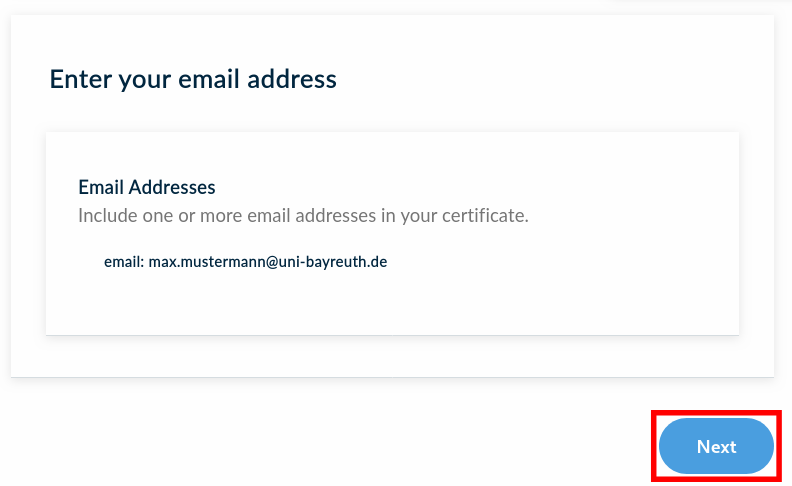
The email address, which the certificate will be issued for, appears now. Click Next.
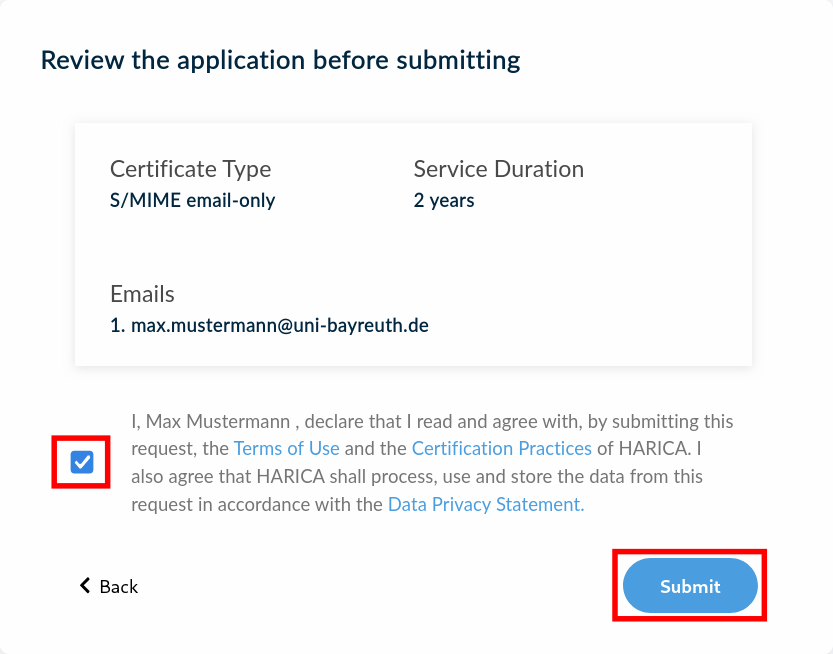
Accept the HARICA Terms of Use by clicking the checkbox and then Submit
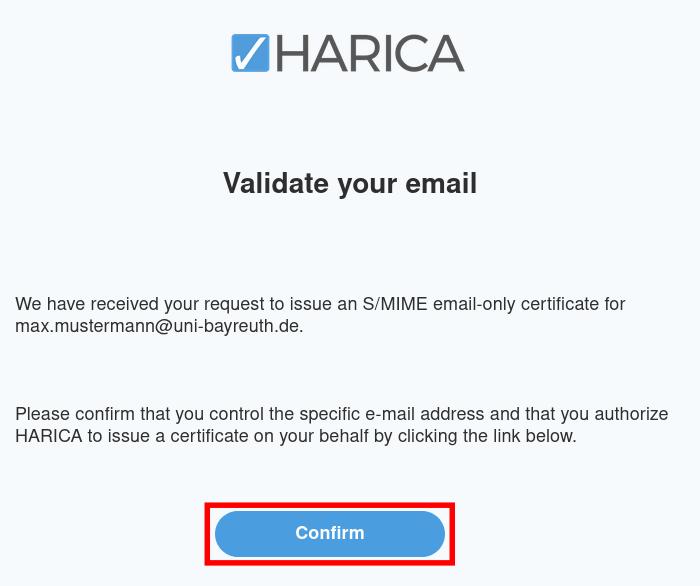
Now, check your inbox, you should have received a confirmation mail. In it, click on Confirm.
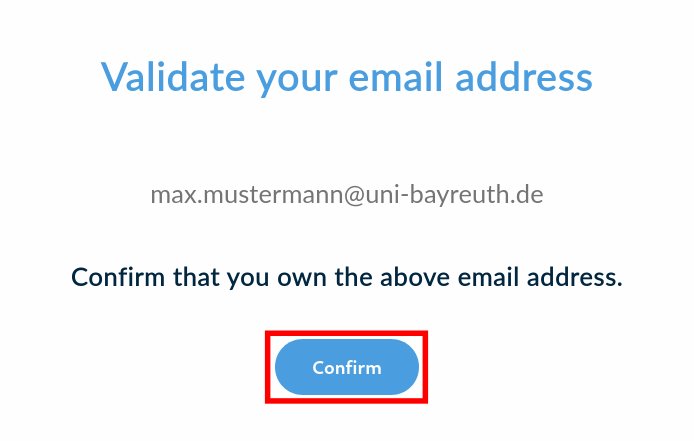
A browser window or tab opens, in it, click Confirm again.
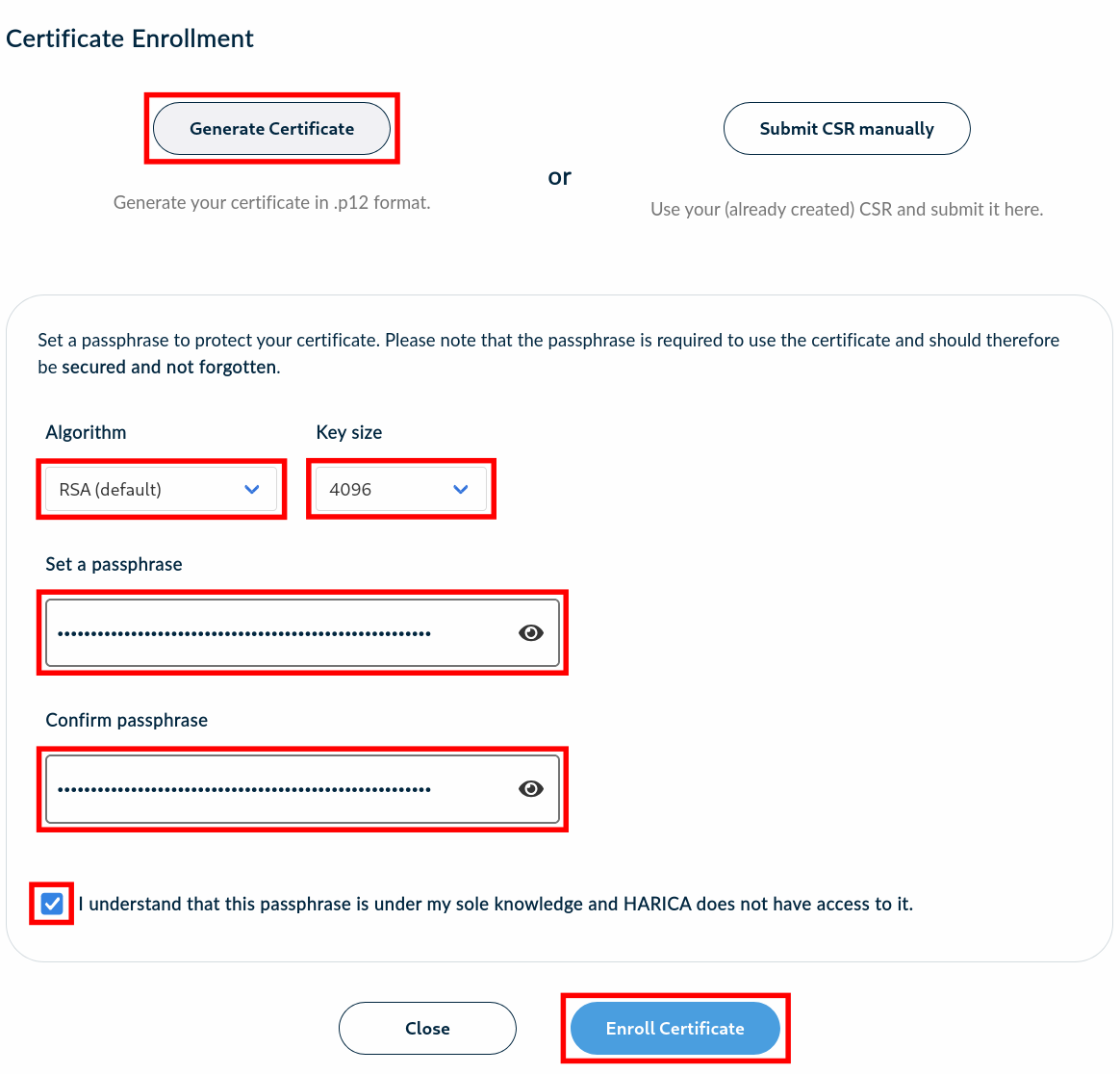
You can now request your certificate. Choose Generate Certificate and set the following options:
Algorithm: RSA (default)
Key Size: 4096
Now think of a secure passwort that will be used to encrypt your certificate – it is independent from your Uni Bayreuth user account password.
Enter this password under Set a passphrase, and also under Confirm Passphrase, confirm the checkbox and then click Enroll Certificate.
Keep the password in a safe place. There is no way to recover it if it gets lost!
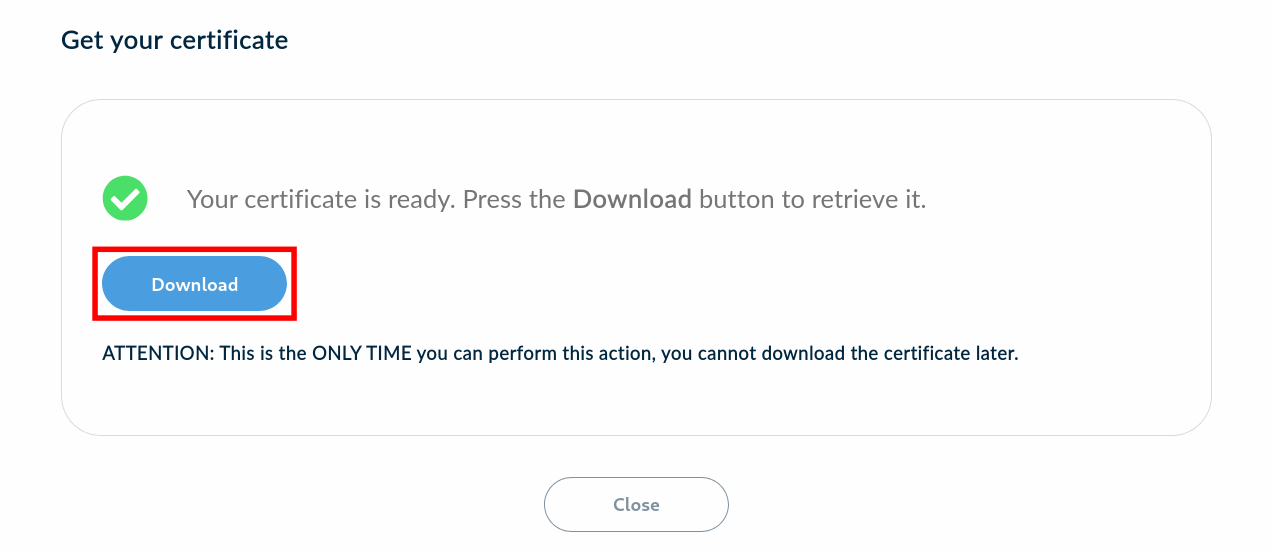
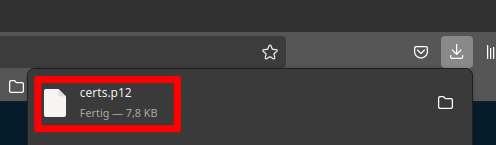
Now, click Download! The certificate file with the extension .p12 was downloaded to your computer and can now be used.
Please keep it in a safe place, separate from the password!
If you want to sign your mails with this certificate, head over to the Mail category.